RateLimitingOnInstio

Service Example

The yaml file is directly taken from the official example of helloworld, but I remove the v2 deployment, thus the yaml file is listed as following:

apiVersion: v1
kind: Service
metadata:
  name: helloworld
  labels:
    app: helloworld
spec:
  type: NodePort
  ports:
  - port: 5000
    name: http
  selector:
    app: helloworld
---
apiVersion: extensions/v1beta1
kind: Deployment
metadata:
  name: helloworld-v1
spec:
  replicas: 1
  template:
    metadata:
      labels:
        app: helloworld
        version: v1
    spec:
      containers:
      - name: helloworld
        image: istio/examples-helloworld-v1
        resources:
          requests:
            cpu: "100m"
        imagePullPolicy: IfNotPresent #Always
        ports:
        - containerPort: 5000

Use istioctl for injecting the sidecar, thus we could later use prometheus for monitoring its traffic flow:

# kubectl create -f <(istioctl kube-inject -f helloworld.yaml)

Examine the deployment/service/pods:

# kubectl get svc helloworld       
NAME         TYPE       CLUSTER-IP    EXTERNAL-IP   PORT(S)          AGE
helloworld   NodePort   10.96.242.5   <none>        5000:31241/TCP   27m
# kubectl get deployment helloworld-v1
NAME            DESIRED   CURRENT   UP-TO-DATE   AVAILABLE   AGE
helloworld-v1   1         1         1            1           27m
# kubectl get pods | grep helloworld
helloworld-v1-7d57446779-dctlv    2/2       Running   0          27m

Make ingress

The helloworld-ingress.yaml is listed as following:

apiVersion: extensions/v1beta1
kind: Ingress
metadata:
  name: helloworld
  annotations:
    kubernetes.io/ingress.class: "istio"
spec:
  rules:
  - http:
      paths:
      - path: /hello
        backend:
          serviceName: helloworld
          servicePort: 5000

Create the ingress and verify it:

# kubectl create -f helloworld-ingress.yaml
# kubectl get ingress helloworld
NAME         HOSTS     ADDRESS   PORTS     AGE
helloworld   *                   80        1h
# curl http://192.168.99.100:30039/hello
Hello version: v1, instance: helloworld-v1-7d57446779-dctlv

Rate Limiting

Write following rete limiting yaml for defining its traffic:

apiVersion: "config.istio.io/v1alpha2"
kind: memquota
metadata:
  name: helloworldservicehandler
  namespace: istio-system
spec:
  quotas:
  - name: helloworldservicerequestcount.quota.istio-system
    maxAmount: 5000
    validDuration: 1s
    # The first matching override is applied.
    # A requestcount instance is checked against override dimensions.
    overrides:
    # The following override applies to 'helloworld' regardless
    # of the source.
    - dimensions:
        destination: helloworld
      maxAmount: 2
      validDuration: 1s

---
apiVersion: "config.istio.io/v1alpha2"
kind: quota
metadata:
  name: helloworldservicerequestcount
  namespace: istio-system
spec:
  dimensions:
    source: source.labels["app"] | source.service | "unknown"
    sourceVersion: source.labels["version"] | "unknown"
    destination: destination.labels["app"] | destination.service | "unknown"
    destinationVersion: destination.labels["version"] | "unknown"

---
apiVersion: "config.istio.io/v1alpha2"
kind: rule
metadata:
  name: helloworldservicequota
  namespace: istio-system
spec:
  actions:
  - handler: helloworldservicehandler.memquota
    instances:
    - helloworldservicerequestcount.quota
---
apiVersion: config.istio.io/v1alpha2
kind: QuotaSpec
metadata:
  creationTimestamp: null
  name: helloworldservicerequest-count
  namespace: istio-system
spec:
  rules:
  - quotas:
    - charge: 1
      quota: RequestCount
---
apiVersion: config.istio.io/v1alpha2
kind: QuotaSpecBinding
metadata:
  creationTimestamp: null
  name: helloworldservicerequest-count
  namespace: istio-system
spec:
  quotaSpecs:
  - name: helloworldservicerequest-count
    namespace: istio-system
  services:
  - name: helloworld
    namespace: default

The above items define a 2 qps rate limiting.

Monitoring

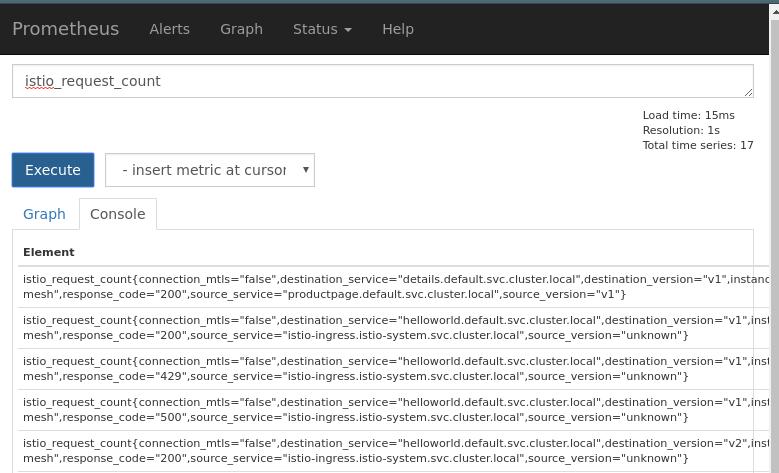
Use prometheus for monitoring the traffic, enable prometheus via:

# kubectl create -f ~/Code/istio-0.7.1/install/kubernetes/addons/prometheus.yaml

You could configure the prometheus’s service type to NodePort, thus you could directly access it.
/images/2018_05_01_22_21_56_779x473.jpg

Make the traffic:

# while true; do curl -s -o /dev/null http://192.168.99.100:30039/hello;done

Then view the prometheus via following:

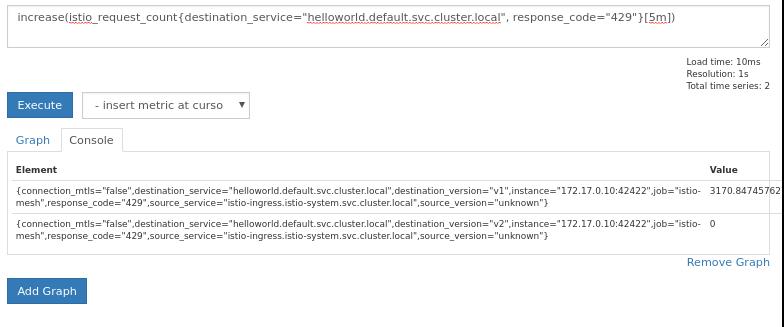
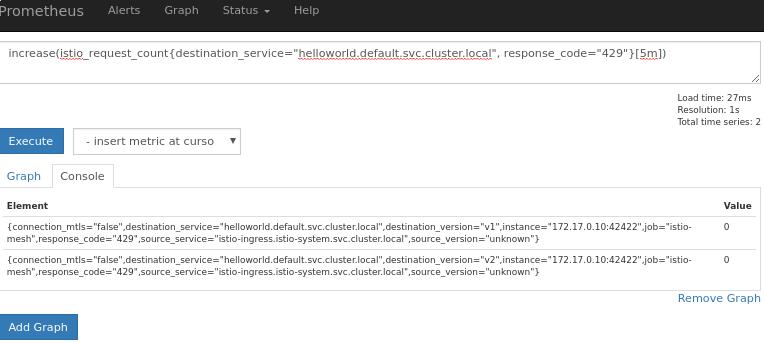
# increase(istio_request_count{destination_service="helloworld.default.svc.cluster.local", response_code="429"}[5m])

Initial:
/images/2018_05_01_22_24_18_764x343.jpg

After aboult 3 minutes:

/images/2018_05_01_22_24_50_784x327.jpg

You could change the response code from 429 to 200, this means you get the succeed rate.

Fetch back the result

Refers to:

https://www.robustperception.io/prometheus-query-results-as-csv/

# wget https://raw.githubusercontent.com/RobustPerception/python_examples/master/csv/query_csv.py

For querying the 429/200:

#  python query_csv.py http://127.0.0.1:9090 'increase(istio_request_count{destination_service="helloworld.default.svc.cluster.local", response_code="429"}[5m])'
name,timestamp,value,connection_mtls,destination_service,destination_version,instance,job,response_code,source_service,source_version
,1525185609.906,8145.762711864407,false,helloworld.default.svc.cluster.local,v1,172.17.0.10:42422,istio-mesh,429,istio-ingress.istio-system.svc.cluster.local,unknown
#  python query_csv.py http://127.0.0.1:9090 'increase(istio_request_count{destination_service="helloworld.default.svc.cluster.local", response_code="200"}[5m])'
name,timestamp,value,connection_mtls,destination_service,destination_version,instance,job,response_code,source_service,source_version
,1525185628.005,886.7796610169491,false,helloworld.default.svc.cluster.local,v1,172.17.0.10:42422,istio-mesh,200,istio-ingress.istio-system.svc.cluster.local,unknown

8145 and 886 are the values for the query, we could use them for 2nd development.
WorkingTipsOnIstioDev

Sample SVC

Create a sample svc using minikube:

# sudo docker save jrelva/nginx-autoindex>autoindex.tar
# eval $(minikube docker-env)
# docker load<autoindex.tar
# kubectl run --image=jrelva/nginx-autoindex:latest nginx-autoindex --port=80 --image-pull-policy=IfNotPresent
deployment "nginx-autoindex" created
# kubectl get deployment
NAME               DESIRED   CURRENT   UP-TO-DATE   AVAILABLE   AGE
nginx-autoindex    1         1         1            1           6s
# kubectl expose deployment nginx-autoindex --name nginx-autoindex-svc
# kubectl get svc | grep nginx
nginx-autoindex-svc   ClusterIP   10.107.181.75    <none>        80/TCP           29s

Istio Configuration:

# kubectl get svc --all-namespaces | grep istio-ingress
istio-system   istio-ingress          LoadBalancer   10.100.152.241   <pending>     80:30336/TCP,443:32004/TCP  

Istio Ingress

kismatic110tips

preparation

Deployment machine, Download the packages:

# mkdir deploy
# cd deploy
# wget https://github.com/apprenda/kismatic/releases/download/v1.10.0/kismatic-v1.10.0-linux-amd64.tar.gz
# git clone https://github.com/apprenda/kismatic.git
# tar xzvf *.tar.gz;
# ls 
ansible  helm  kismatic  kismatic-master  kismatic-master.zip  kismatic-v1.10.0-linux-amd64.tar.gz  kubectl  provision

Target node(all-in-one), install python-pip, shadowsocks, redsocks, gcc, etc, for acrossing the fucking GFW!

plan

plan the cluster

./kismatic install plan
Plan your Kubernetes cluster:
=> Number of etcd nodes [3]: 1
=> Number of master nodes [2]: 1
=> Number of worker nodes [3]: 1
=> Number of ingress nodes (optional, set to 0 if not required) [2]: 0
=> Number of storage nodes (optional, set to 0 if not required) [0]: 0
=> Number of existing files or directories to be copied [0]: 0

Generating installation plan file template with: 
- 1 etcd nodes
- 1 master nodes
- 1 worker nodes
- 0 ingress nodes
- 0 storage nodes
- 0 files

Wrote plan file template to "kismatic-cluster.yaml"
Edit the plan file to further describe your cluster. Once ready, execute the "install validate" command to proceed.

An empty kismatic-cluster.yaml will be generated, later we will edit it.

validate

validate with detailed information:

./kismatic install validate -o raw

Error:

ansible/bin/ansible-playbook -i ansible/inventory.ini -s ansible/playbooks/preflight.yaml --extra-vars @ansible/clustercatalog.yaml -vvvv
Traceback (most recent call last):
  File "ansible/bin/ansible-playbook", line 36, in <module>
    import shutil
  File "/usr/lib/python3.6/shutil.py", line 10, in <module>
    import fnmatch
  File "/usr/lib/python3.6/fnmatch.py", line 14, in <module>
    import re
  File "/usr/lib/python3.6/re.py", line 142, in <module>
    class RegexFlag(enum.IntFlag):
AttributeError: module 'enum' has no attribute 'IntFlag'
error running playbook: error running ansible: exit status 1

Seems because the python is python3 rather than python2.

Edit the python definition:

# vim ansible/bin/ansible-playbook
    #!/usr/bin/python2

Then your validation will be OK.

install apply

Via following command:

# ./kismatic install apply

WorkingTipsOnPlayWithK8s

Aim

To Write an tutorial for colleagues for learning, they only have to open the browser, by clicking then they could get an automated dev environment.

Environment

play-with-kubernetes blog:

# git clone https://github.com/play-with-docker/play-with-kubernetes.github.io.git
# cd play-with-kubernetes.github.io/
# vim _config.yml
pwkurl: http://192.168.189.114
# docker-compose up

Then open your browser http://192.168.189.114:4000, and you will see the play-with-k8s webpages.

For using the local infrastructure, to configure the play-with-docker with following steps:

# cd /root/go/src/github.com/play-with-docker/play-with-docker
# vim config/config.go
	//flag.StringVar(&DefaultDinDImage, "default-dind-image", "franela/dind", "Default DinD image to use if not specified otherwise")
	flag.StringVar(&DefaultDinDImage, "default-dind-image", "franela/k8s", "Default DinD image to use if not specified otherwise")

While the image we specified here could be the one you added your changes, but default we will use franela/k8s.

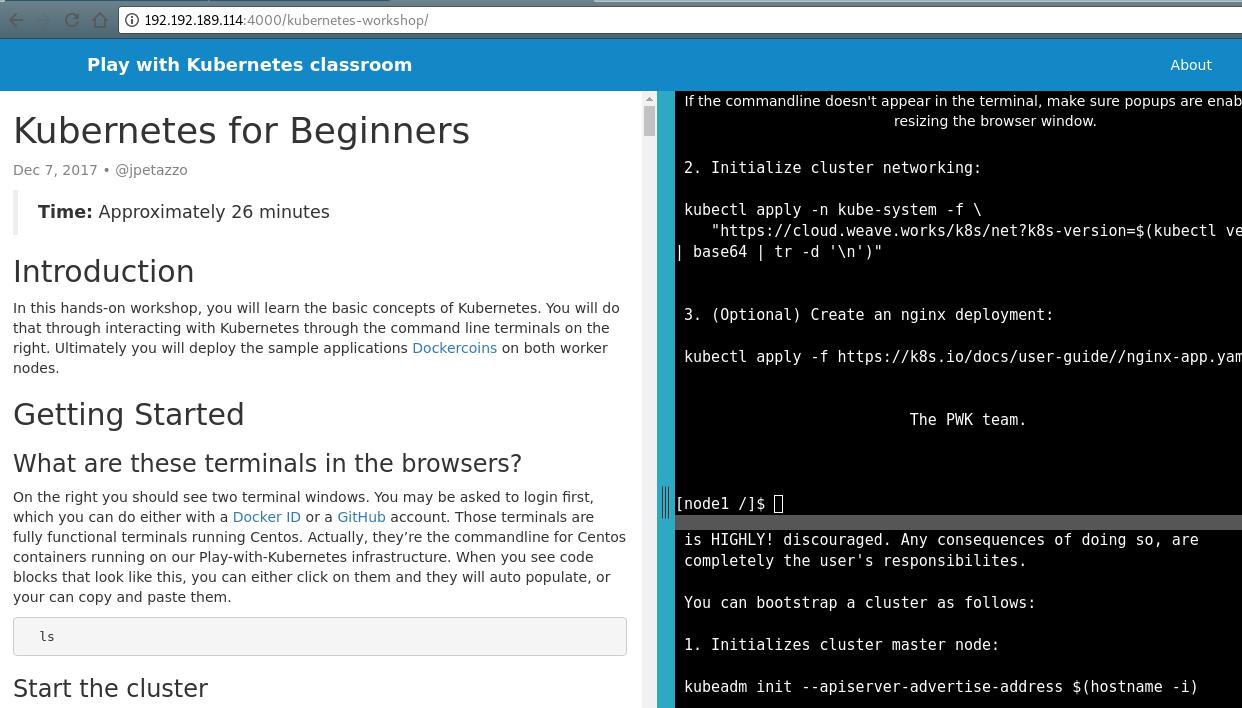
The webpage is showed as:

/images/2018_04_12_09_25_38_1242x708.jpg

WorkingTipsOnPlayWithDocker2

migration

Really migrate this image into the inner intranet, without any internet connection.

Registry Changing

You have to comment the proxy definition, or your registry instance will restart frequently, thus your dind won’t get working using registry.

# vim /root/data/config.yml
	#proxy:
		# remoteurl: https://registry-1.docker.io
# docker restart docker-registry-proxy-2

systemd definition

Define following two systemd units:

# vim /etc/systemd/system/playwithdocker.service 
[Unit]
Description=playwithdocker
After=docker.service
Requires=docker.service

[Service]
Environment=GOPATH=/root/go/
ExecStart=/usr/bin/docker-compose -f /root/go/src/github.com/play-with-docker/play-with-docker/docker-compose.yml up -d

[Install]
WantedBy=multi-user.target

This unit will start blog service automatically.

# vim /etc/systemd/system/playwithdockerblog.service 
[Unit]
Description=playwithdockerblog
After=docker.service
Requires=docker.service

[Service]
ExecStart=/usr/bin/docker-compose -f /root/Code/play-with-docker.github.io/docker-compose.yml up -d

[Install]
WantedBy=multi-user.target
# systemctl enable playwithdocker.service
# systemctl enable playwithdockerblog.service

Next time the service will automatically start.

Offline CSS/js

bootstrap fonts:

# wget https://github.com/twbs/bootstrap/archive/v3.3.7.zip
# unzip bootstrap-3.3.7.zip
# cd fonts
# mkdir ~/Code/play-with-docker.github.io/_site/fonts/
# cp * ~/Code/play-with-docker.github.io/_site/fonts/

Then your image will display correctly.

/images/2018_04_08_16_15_38_518x362.jpg

Google Fonts

Download the Fonts description from the website, then put all of the related fonts under your local folder.

dnsmasq

Download the rpm package via:

# yum install yum-plugin-downloadonly
# yum reinstall --downloadonly --downloaddir=/root/rpms dnsmasq

Transfer the package to intranet and install it. Then edit the configuration file of dnsmasq:

# vim /etc/dnsmasq.conf
address=/192.192.189.114/192.192.189.114
# systemclt enable dnsmasq && systemctl start dnsmasq