Nov 10, 2014
TechnologySince my operating system upgraded, I have to re-set my bluetooth headset. I use A2DP via Bluez5/Pulseaudio.
Installation
First install following packages:
# pacman -S pulseaudio-alsa bluez bluez-libs bluez-utils
Then start the service via systemd:
# systemctl start bluetooth
Configuration
I use an expect script for automatically connect to my MW600 and play:
#!/usr/bin/expect

# This script is for automatically scan my bluetooth headset, which is Sony-Errison mw-600

# Timeout should be very short in local
# set timeout 3

spawn ssh Trusty@localhost -Y
expect {
        "yes/no" {
                    send "yes\n"
                                exp_continue
                                    }
            "assword" {
                        send "xxxxxxx!\n"
                                }
}
expect $

# Now we are in the controlled session, run bluetooth related commands.
send "bluetoothctl\r"
expect #
send "power on\r"
expect "yes"
send "agent on\r"
expect #
send "default-agent\r"
expect #
send "connect 8C:64:22:5F:FF:BD\r"
expect "connection successful"
# Now exit the bluetoothctl
send "exit\r"
expect $

# After execute the command in this ssh session, simply exit.
send "exit\r"
expect $
Everytime I want to use bluetooth headset, just run:
$ /home/Trusty/auto/autobluetooth.sh && pavucontrol &
Flash Content
Install following package for let alsa use pulseaudio:
$ sudo pacman -S pulseaudio-alsa
Restart opera(or other browser which calls flash), now your sound will be played via bluetooth.
Nov 10, 2014
TechnologyBuilding Guideline
I found a openwrt-bbb repository on github, so just download it and build:
https://github.com/nc543/openwrt-bbb/wiki
$ git clone https://github.com/nc543/openwrt-bbb.git
$ cd openwrt-bbb
$ make
When building you will meet the openssl download error, simply change the version from 1.0.1i to 1.0.1h or other version is OK.
I change this because in recent days the download page of openssl.org is not stable, so the download procedure will directly download the tar files from openwrt.org, while on openwrt.org it holds the 1.0.1h version rather than 1.0.1i version. If you could get 1.0.1i version from openssl.org, then you needn’t do these changes.
Verification
As the author said, directly use dd for copying the files into the SD card, but I failed.
SD Card
Use following command for write the image to the SD card:
$ sudo dd if=bin/omap/openwrt-omap-combined-vfat-ext4.img of=/dev/sdb
$ sync
Then we have to do following operation in order to change the bootup sequence and parameters:
$ mount /dev/mmcblk0p1 /mnt
$ cp openwrt-omap-zImage /mnt/
$ cp dtbs/am335x-boneblack.dtb /mnt/dtbs/
$ vim uEnv.txt
kernel_file=zImage
fdtfile=am335x-boneblack.dtb

loadzimage=load mmc ${mmcdev}:${mmcpart} ${loadaddr} ${kernel_file}
loadfdt=load mmc ${mmcdev}:${mmcpart} ${fdtaddr} /dtbs/${fdtfile}

console=ttyO0,115200n8
mmcroot=/dev/mmcblk0p2 ro
mmcrootfstype=ext4 rootwait

mmcargs=setenv bootargs console=${console} root=${mmcroot} rootfstype=${mmcrootfstype} ${optargs}

uenvcmd=run loadzimage; run loadfdt; run mmcargs; bootz ${loadaddr} - ${fdtaddr}

optargs="debug init=/etc/preinit"
With above modification you could directly use the SD card for booting the BBB and use OpenWRT!
NFS
Create NFS via following command:
[root@TrustyArch omap]# pwd
/media/y/embedded/BBB/OpenWRT/openwrt-bbb/bin/omap
[root@TrustyArch omap]# cp openwrt-omap-zImage /srv/tftp/
[root@TrustyArch omap]# cp dtbs/am335x-boneblack.dtb /srv/tftp/
[root@TrustyArch omap]# mkimage -A arm -O linux -T kernel -C none -a 0x80008000 -e 0x80008000 -n "Linux" -d /srv/tftp/openwrt-omap-zImage /srv/tftp/uImage
[root@TrustyArch omap]# rm -rf /srv/nfs4/BBBrootfs/
[root@TrustyArch omap]# mkdir -p /srv/nfs4/BBBrootfs
[root@TrustyArch omap]# tar xzvf openwrt-omap-Default-rootfs.tar.gz -C /srv/nfs4/BBBrootfs/
Wow, start from NFS got failed for:
[    1.262675] VFS: Cannot open root device "nfs" or unknown-block(0,255): error -6
[    1.270603] Please append a correct "root=" boot option; here are the available partitions:
[    1.279456] b300         1875968 mmcblk0  driver: mmcblk
[    1.285084]   b301           72261 mmcblk0p1 00000000-01
[    1.290680]   b302         1799280 mmcblk0p2 00000000-02
[    1.296300] b310            1024 mmcblk0boot1  (driver?)
[    1.301895] b308            1024 mmcblk0boot0  (driver?)
[    1.307513] Kernel panic - not syncing: VFS: Unable to mount root fs on unknown-block(0,255)
Later I will investigate this problem.
Re-Compile Kernel
First we enable the kernel .config support, so later we could directly output its .config for newer version:
$ make menuconfig
General setup
[*] Kernel .config support
[*] Enable access to .config through /proc/config.gz
Enable the nfs support:
Device Driver
[*] Block devices
[*] Network block device support
Networking options
[*] IP: kernel level autoconfiguration
[*]	IP: DHCP support
[*]	IP: BOOTP support
[*]
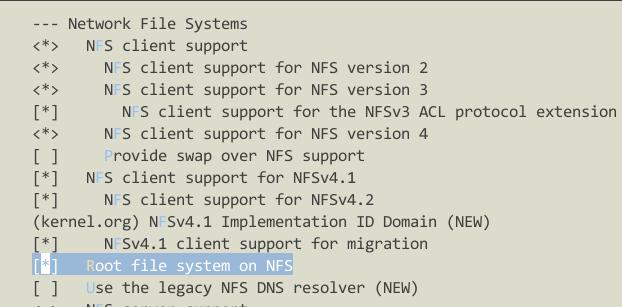
File Systems
[*] Netwrok File Systems
The detailed NFS client configuration is listed as following image:
Save the configuration and re-compile the kernel:
$ make V=99 -j4
Nov 9, 2014
Technology因为原文是英文的缘故,所以这里就直接用中文翻译,并把编译时的步骤和注意事项记载下来。
主要参考了:
https://eewiki.net/display/linuxonarm/BeagleBone+Black
All of the files and folder are located under $BBB/201411 folder.
交叉编译链准备
下载、设置交叉编译链:
wget -c https://releases.linaro.org/14.09/components/toolchain/binaries/gcc-linaro-arm-linux-gnueabihf-4.9-2014.09_linux.tar.xz
tar xf gcc-linaro-arm-linux-gnueabihf-4.9-2014.09_linux.tar.xz
export CC=`pwd`/gcc-linaro-arm-linux-gnueabihf-4.9-2014.09_linux/bin/arm-linux-gnueabihf-
测试交叉编译链:
# ${CC}gcc --version
arm-linux-gnueabihf-gcc (crosstool-NG linaro-1.13.1-4.9-2014.09 - Linaro GCC 4.9-2014.09) 4.9.2 20140904 (prerelease)
Copyright (C) 2014 Free Software Foundation, Inc.
This is free software; see the source for copying conditions.  There is NO
warranty; not even for MERCHANTABILITY or FITNESS FOR A PARTICULAR PURPOSE.
编译U-Boot
下载U-Boot:
git clone git://git.denx.de/u-boot.git
cd u-boot/
git checkout v2014.10 -b tmp
下载、加载补丁:
wget -c https://raw.githubusercontent.com/eewiki/u-boot-patches/master/v2014.10/0001-am335x_evm-uEnv.txt-bootz-n-fixes.patch
patch -p1 < 0001-am335x_evm-uEnv.txt-bootz-n-fixes.patch
编译U-Boot:
# make ARCH=arm CROSS_COMPILE=${CC} distclean && make ARCH=arm CROSS_COMPILE=${CC} am335x_evm_defconfig && make ARCH=arm CROSS_COMPILE=${CC}
编译内核
下面的步骤将编译出内核和内核模块,编译完成后全部被拷贝到deploy文件夹中。
主线内核
编译前准备, 在Ubuntu 12.04,安装下列包:
$ sudo apt-get install bc build-essential device-tree-compiler fakeroot lzma lzop man-db u-boot-tools libncurses5-dev ia32-libs wget
下载:
$ git clone https://github.com/RobertCNelson/bb-kernel.git
$ cd bb-kernel/
切换到v3.8.x分支(支持全面):
$ git checkout origin/am33x-v3.8 -b tmp
切换到v3.17.x分支(SGX, 更好的usb和Ethernet支持), SGX,硬件加速。
$ git checkout origin/am33x-v3.17 -b tmp
编译:
$ ./build_kernel.sh
TI内核
完整编译步骤如下:
git clone https://github.com/RobertCNelson/ti-linux-kernel-dev/
cd ti-linux-kernel-dev/
git checkout origin/ti-linux-3.14.y -b tmp
./build_kernel.sh
准备文件系统
Ubuntu
下载并解压Ubuntu文件系统:
wget -c https://rcn-ee.net/deb/minfs/trusty/ubuntu-14.04-minimal-armhf-2014-07-07.tar.xz
tar xf ubuntu-14.04-minimal-armhf-2014-07-07.tar.xz
写入存储卡
分区准备
准备的TF卡容量为8G, 使用lsblk可以用于查看device id。
$ lsblk
NAME        MAJ:MIN RM   SIZE RO TYPE MOUNTPOINT
mmcblk0     179:0    0   7.4G  0 disk
├─mmcblk0p1 179:1    0    48M  0 part
└─mmcblk0p2 179:2    0   7.4G  0 part
备份好TF卡上文件内容后,对其重新进行分区,这里使用fdisk移除掉所有分区后重新分成一个区,而后格式化为ext4分区。
# export DISK=/dev/mmcblk0
# sudo dd if=/dev/zero of=${DISK} bs=1M count=10
# sudo dd if=./u-boot/MLO of=${DISK} count=1 seek=1 conv=notrunc bs=128k
# sudo dd if=./u-boot/u-boot.img of=${DISK} count=2 seek=1 conv=notrunc bs=384k
# sudo sfdisk --in-order --Linux --unit M ${DISK} <<-__EOF__
1,,0x83,*
__EOF__
# sudo mkfs.ext4 /dev/mmcblk0p1 -L rootfs
现在查看lsblk的结果应该是这样:
mmcblk0     179:0    0   7.4G  0 disk
└─mmcblk0p1 179:1    0   7.4G  0 part
写入
我们将使用eMMC自有的BootLoader, 所以在/media/rootfs中使用下列内容到uEnv.txtt:
##This will work with: Angstrom's 2013.06.20 u-boot.

loadaddr=0x82000000
fdtaddr=0x88000000
rdaddr=0x88080000

initrd_high=0xffffffff
fdt_high=0xffffffff

loadximage=load mmc 0:1 ${loadaddr} /boot/vmlinuz-${uname_r}
loadxfdt=load mmc 0:1 ${fdtaddr} /boot/dtbs/${uname_r}/${fdtfile}
loadxrd=load mmc 0:1 ${rdaddr} /boot/initrd.img-${uname_r}; setenv rdsize ${filesize}
loaduEnvtxt=load mmc 0:1 ${loadaddr} /boot/uEnv.txt ; env import -t ${loadaddr} ${filesize};
loadall=run loaduEnvtxt; run loadximage; run loadxfdt;

mmcargs=setenv bootargs console=tty0 console=${console} ${optargs} ${cape_disable} ${cape_enable} root=${mmcroot} rootfstype=${mmcrootfstype} ${cmdline}

uenvcmd=run loadall; run mmcargs; bootz ${loadaddr} - ${fdtaddr};
解压缩下载好的rootfs文件到SD卡分区:
$ tar xvf armhf-rootfs-ubuntu-trusty.tar -C /media/rootfs/
$ sync
拷贝kernel到SD卡分区:
# cp /media/y/embedded/BBB/201411/deploy/3.14.23-ti-r32.zImage ./vmlinuz-3.14.23-ti-r32
拷贝Kernel Device Tree二进制文件:
tar xvf /media/y/embedded/BBB/201411/deploy/3.14.23-ti-r32-dtbs.tar.gz -C /media/rootfs/boot/dtbs/${kernel_version}/
拷贝内核模块:
# tar xfv /media/y/embedded/BBB/201411/deploy/3.14.23-ti-r32-modules.tar.gz -C /media/rootfs/
配置fstab文件:
sudo sh -c "echo '/dev/mmcblk0p1 / auto errors=remount-ro 0 1' >> /media/rootfs/etc/fstab"
配置网络:
# vim /media/rootfs/etc/network/interfaces
auto lo
iface lo inet loopback

auto eth0
iface eth0 inet dhcp
配置串口登录:
$ sudo vim /media/rootfs/etc/init/serial.conf
start on stopped rc RUNLEVEL=[2345]
stop on runlevel [!2345]

respawn
exec /sbin/getty 115200 ttyO0
进入U-boot后更改一下配置:
U-Boot# setenv mmcroot /dev/mmcblk0p1 ro
U-Boot# boot
默认用户名,密码分别是: root/temppwd
进入系统以后查看系统信息:
ubuntu@arm:~$ uname -a
Linux arm 3.14.23-ti-r32 #1 SMP PREEMPT Sun Nov 9 04:19:25 UTC 2014 armv7l armv7l armv7l GNU/Linux
ubuntu@arm:~$ cat /etc/issue
Ubuntu 14.04 LTS \n \l

default username:password is [ubuntu:temppwd]
ubuntu@arm:~$ ifconfig
eth0      Link encap:Ethernet  HWaddr 90:59:af:65:d9:8c
          inet addr:10.0.0.122  Bcast:10.0.0.255  Mask:255.255.255.0
Nov 8, 2014
TechnologyMainly for installing the OpenWRT system on the BBB, following is the steps:
# zImage
cp /media/y/embedded/BBB/svnco/trunk/bin/omap/openwrt-omap-zImage ./zImage
# dtb file
cp /media/y/embedded/BBB/svnco/trunk/bin/omap/dtbs/am335x-boneblack.dtb ./dtbs/
Nov 8, 2014
TechnologySince there are some strange problems in my ArchLinux(Physical Machine), its nfs server will be ignored by the embedded board, while my joggler which runs ubuntu12.04 acts OK. So I try to find a sufficient way for dealing with this issue.
Container Configuration
I’ve installed Ubuntu_Container which holds 12.04 in my physical machine. So the nfs server would be configured in this container.
$ sudo apt-get update
$ sudo apt-get install nfs-kernel-server portmap nfs-common
Then edit the /srv/nfs4, and export its configuration in /etc/exports:
/srv/nfs4 *(rw,sync,no_root_squash,no_subtree_check)
Everytime you want to start the nfs service, just type:
$ /etc/init.d/nfs-kernel-server restart
$ /etc/init.d/portmap restart
Test
Client run:
sudo mount -t nfs 1xx.xx.xx.xx:/srv/nfs4/ /mnt
Trouble-Shooting
The correct parameter for mounting the nfs server is:
setenv bootargs console=ttyO0,115200n8 root=/dev/nfs rw nfsroot=192.168.1.221:/srv/nfs4/BBBrootfs ip=192.168.1.1
Then you won’t have other problems, even the physical machine could also use the nfs filesystem.
