Dec 30, 2014
TechnologyI found lots of ssh connection attack info under the folder of /var/log/btmp, So I decide to change the sshd default listening port, from 22 to xxxx. Following is the steps for doing this:
Change SSHD Listening Port
Change the default port from 22 to xxxx
# vim /etc/ssh/sshd_config
Change the port from 22 to xxxx
# service ssh restart
Now, congratulations, you lost all of your connections, since you have enable the iptables and banned all of the other ports.
Solution
Don’t worry, we have digitalOcean’s terminal service, from it we could reached the console.
But the problem is: it’s pretty slow for us to visit this webpage from China to US!
Then we should use another machine which runs coreos.
Create a new lxde based vnc machine simply via following command:
core@Trustycore ~ $ docker pull dorowu/ubuntu-desktop-lxde-vnc
Run the machine
docker run -i -t -p 6080:6080 dorowu/ubuntu-desktop-lxde-vnc
Then open your browser and visit:
http://Your_ip_address:6080/vnc.html you could reached the vnc machine.
Memory Problem
Since the default memory is only 512MB, we have to enable the swapfile, thus we could use firefox for accessing the DigitalOcean terminal.
Following is the steps:
$ sudo dd if=/dev/zero of=/swapfile bs=1M count=1024
$ sudo chmod 600 /swapfile
$ sudo mkswap /swapfile
$ sudo vim /etc/systemd/system/swap.service
 [Unit]
 Description=Turn on swap
 [Service]
 Type=oneshot
 Environment="SWAPFILE=/swapfile"
 RemainAfterExit=true
 ExecStartPre=/usr/sbin/losetup -f ${SWAPFILE}
 ExecStart=/usr/bin/sh -c "/sbin/swapon $(/usr/sbin/losetup -j ${SWAPFILE} | /usr/bin/cut -d : -f 1)"
 ExecStop=/usr/bin/sh -c "/sbin/swapoff $(/usr/sbin/losetup -j ${SWAPFILE} | /usr/bin/cut -d : -f 1)"
 ExecStopPost=/usr/bin/sh -c "/usr/sbin/losetup -d $(/usr/sbin/losetup -j ${SWAPFILE} | /usr/bin/cut -d : -f 1)"
 [Install]
 WantedBy=multi-user.target
$ sudo  systemctl enable /etc/systemd/system/swap.service
$ sudo systemctl start swap
Now you could happily use firefox in your vnc window.
Simply login to the terminal window, and modify the configuration file, restart the ssh service, now you could also change the iptables rules, to open xxxx port.
Another way is to disable root login, in /etc/ssh/sshd_config , set#PermitRootLogin yes to PermitRootLoginno.
You will be safe.
Dec 29, 2014
TechnologyFor searching all of the alive machine in the LAN, we could use nmap for searching.
Install the nmap via:
sudo pacman -S nmap
Scan the lan for living host:
# nmap -sP 10.0.0.*

Starting Nmap 6.47 ( http://nmap.org ) at 2014-12-29 14:25 CST
Nmap scan report for www.routerlogin.com (10.0.0.1)
Host is up (0.00040s latency).
MAC Address: xxx.xxx.xxx.xxx(xxx),
Nmap scan report for 10.0.0.20
Host is up (0.00019s latency).
MAC Address: xxx.xxx.xxx.xxx(xxx),
Via this command we could easily detect which machine is living in the LAN.
Dec 29, 2014
TechnologySince Google Reader has been closed, many guys cannot find suitable Rss Reader for personal use. Following is a simple guildeline for setting up the Tiny Tiny Rss Reader on DigitalOcean, using docker, it’s pretty simple for setting up .
Container Setup
Build two containers:
cd code
mkdir TinyTinyRss
cd TinyTinyRss/
git clone https://github.com/clue/docker-ttrss.git
cd docker-ttrss/
docker run -d --name ttrssdb nornagon/postgres
docker run -d --link ttrssdb:db -p 8078:80 clue/ttrss
ttrssdb is the dababase name for postgres, while the clue/ttrss is the tinytinyRss Webapp.
Effect
Visit the following URL:
http://Your_IP:8078
Then you would see the following picture:
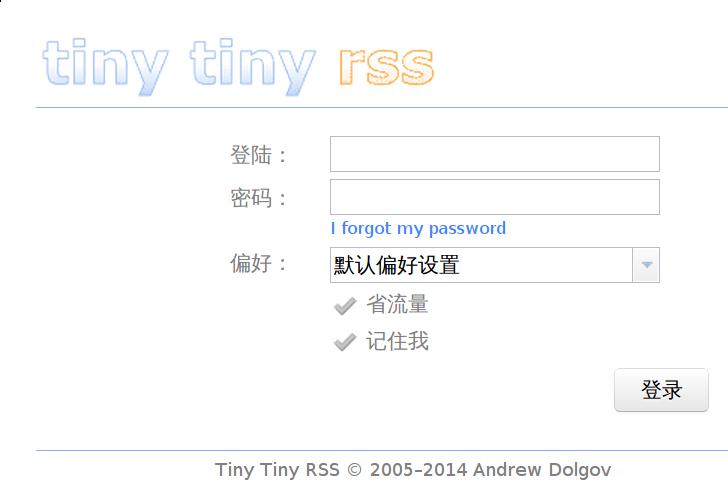
The default username/password is admin/123456
Commit Changes
List the running images and commit the changes to the new container:
~# docker ps
700c82aa344b        clue/ttrss:latest          /bin/sh -c 'php /con   3 days ago          Up 3 days           0.0.0.0:8078->80/tcp                                             dreamy_davinci
# docker commit 700c82aa344b wmz_tinyrss
c85a9d1a15b18685ffc3441e18f327059928aca623a39b36780184676f6d0921
Now we could stop the running container and changes the listening port.
# docker stop 700c82aa344b
700c82aa344b
# docker run -d --link ttrssdb:db -p 8080:80 wmz_tinyrss
f378197f7a048a02550e9152a44929628cc77ce61ea1c9e223fc3c7a46fb9bb5
Now the tinyRss listens on 8080 port.
Dec 24, 2014
TechnologyIn DigitalOcean VPS, which runs the Ubuntu 14.04.1 LTS, setup a mail sender server.
Installation
Install the docker.io via:
# apt-get install docker.io
Git clone the repository from the github, configure it and build the container:
# pwd
/root/code/docker_mail
# git clone https://github.com/lava/dockermail.git
# ls
 dockermail
# cd dockermail
# cat mail-base/domains
*******.com.cn
# cat mail-base/passwords
catch-all@xxxxx.com.cn:{PLAIN}password123
admin@xxxxxx.com.cn:{SHA256-CRYPT}$5$3qaCC/fV65Adtfoy$O20EXoSOcgWKf5NyAZnXAtGPQoSgeYRjLm56M25.H12
# make
Run the containers:
root@lilimarleen:~/code/docker_mail/dockermail# make run-all
docker run -d -p 0.0.0.0:25:25 -p 0.0.0.0:587:587 -p 0.0.0.0:143:143 -v /srv/vmail:/srv/vmail dovecot:2.1.7
4dac1e99be85100d7847fb46976249196b0a970ad4f630136cced4ccdc11ac27
docker run -d -p 127.0.0.1:33100:80 rainloop:1.6.9
e7246bcf39ddee334c45ca41c268eb5ebdc092d069024ff81b70f16a3ab11cb4
docker run -d -p 127.0.0.1:33200:80 -v /srv/owncloud:/var/www/owncloud/data owncloud:7.0.2
9e62a4f6140cf43caeb5dc096f995649d3a898ffdeb439a7a7c4501c527f3672
root@lilimarleen:~/code/docker_mail/dockermail# docker ps
CONTAINER ID        IMAGE               COMMAND                CREATED             STATUS              PORTS                                                            NAMES
9e62a4f6140c        owncloud:7.0.2      /bin/sh -c 'cp -npr    3 seconds ago       Up 2 seconds        127.0.0.1:33200->80/tcp                                          backstabbing_sinoussi
e7246bcf39dd        rainloop:1.6.9      /bin/sh -c 'apachect   3 seconds ago       Up 3 seconds        127.0.0.1:33100->80/tcp                                          sad_sinoussi
4dac1e99be85        dovecot:2.1.7       /bin/sh -c 'chown -R   3 seconds ago       Up 3 seconds        0.0.0.0:25->25/tcp, 0.0.0.0:143->143/tcp, 0.0.0.0:587->587/tcp   evil_ptolemy
nsenter
Use nsenter for entering the running container:
# Ubuntu 14.04 don't have nsenter - the straight forward way required me to install build tools and etc.
# I preferred to keep the system clean and install nsenter in a container and then copy the command to the host
# Note - its also possible to run nsenter from a container (didn't tried) https://github.com/jpetazzo/nsenter

# start a container
docker run --name nsenter -it ubuntu:14.04 bash

## in the docker
apt-get update
apt-get install git build-essential libncurses5-dev libslang2-dev gettext zlib1g-dev libselinux1-dev debhelper lsb-release pkg-config po-debconf autoconf automake autopoint libtool

git clone git://git.kernel.org/pub/scm/utils/util-linux/util-linux.git util-linux
cd util-linux/

./autogen.sh
./configure --without-python --disable-all-programs --enable-nsenter
make

## from different shell - on the host
docker cp nsenter:/util-linux/nsenter /usr/local/bin/
docker cp nsenter:/util-linux/bash-completion/nsenter /etc/bash_completion.d/nsenter
Thus you have the nsenter.
Enter the container
Get the PID via:
# docker inspect --format "{{.State.Pid}}" a66adc0e63fc
24740
Enter the docker container and view the status:
# nsenter --target 24740 --mount --uts --ipc --net --pid -- /bin/bash
root@a66adc0e63fc:/#
Why we want to enter this terminal? Because we want to view the password of the admin. The configuration file says:
# cat mail-base/passwords
admin@xxxx.com.cn:{SHA256-CRYPT}$5$3qaCC/fV65Adtfoy$O20EXoSOcgWKf5NyAZnXAtGPQoSgeYRjLm56M25.H12
If you met “port has been occupied”, you should do like following:
Remove all of the containers:
# docker ps -a | grep "ago" | awk '{print $1}' | xargs --no-run-if-empty docker rm
Trouble Shooting
First you should add corresponding MX record in you domainname service provider.
Dec 19, 2014
TechnologyPurpose
For deploying the development environment in the Vagrant based environment, choose ubuntu 14.04.
Create
List the exising Vagrants:
$ vagrant box list
panamax-coreos-box-494.4.0 (virtualbox, 0)
Now download the vbox file of 14.04 daily Cloud image i386 from www.vagrantbox.es:
$ wget https://cloud-images.ubuntu.com/vagrant/trusty/current/trusty-server-cloudimg-i386-vagrant-disk1.box
Though this method could starts the vbox, but it’s not clean, it will have problems in our deliveris. So use the result from https://atlas.hashicorp.com/boxes/search
$ vagrant init  ubuntu/trusty32
$ vagrant up
Current we use 32, because we may have windowsxp users, or 32-bit system users.
After installation, list all of the installed vboxes:
$ vagrant box list
panamax-coreos-box-494.4.0 (virtualbox, 0)
ubuntu/trusty32            (virtualbox, 14.04)
Configuration
The Bootstrap.sh is listed as following:
#!/usr/bin/env bash
sudo debconf-set-selections <<< 'mysql-server-5.5 mysql-server/root_password password rootpass'
sudo debconf-set-selections <<< 'mysql-server-5.5 mysql-server/root_password_again password rootpass'
apt-get update
apt-get install -y meld
apt-get install -y nginx mysql-server mysql-server-5.5
apt-get install -y nodejs libc-ares2 libv8-3.14.5
apt-get install -y fossil
apt-get install -y git
apt-get install -y php5 php5-fpm
apt-get install -y php5-mysql
apt-get install -y php-pear
apt-get install -y install-info
apt-get install -y php5-dev
apt-get install -y npm
npm install -g pdf.js
then write the Vagrantfile list like:
Vagrant.configure(2) do |config|
  config.vm.box = "ubuntu/trusty32"
  config.vm.network "private_network", ip: "192.168.50.50"
  config.proxy.http = "http://1xx.x.xx.xxx:xxxx"
  config.proxy.https = "http://1xx.x.xx.xxx:xxxx"
  config.proxy.no_proxy = "localhost"
  config.vm.provision :shell, path: "bootstrap.sh"
end
Now run vagrant provision then we could refresh the installation.
