Jun 1, 2015
TechnologyFollowing article records all of the steps for using chef for deploying OpenStack.
Refers to:
http://ehaselwanter.com/en/blog/2014/10/15/deploying-openstack-with-stackforge-chef-zero-style/
Change vbox files
Edit the Vagrantfile for bring up the vbox, then startup the machine, modify its content , save it.
$ vim Vagrantfile
    # -*- mode: ruby -*-
    # vi: set ft=ruby :
    Vagrant::Config.run do |config|
    config.vm.box = "Trusy64"
    config.vm.box_url = "http://xxx.xxx.xxx.xxx/opscode_ubuntu-14.04_chef-provisionerless.box"
    config.vm.customize ["modifyvm", :id, "--memory", 1024]
    end
Login to the running machine and modify its default repository from official to local repository.
$ vagrant up
$ vagrant ssh
(YourVagrantMachine) $ sudo vim /etc/apt/sources.list
(YourVagrantMachine) $ sudo vim /etc/apt/apt.conf
(YourVagrantMachine) $ sudo apt-get update && sudo apt-get -y upgrade
Now save your modification to the vbox file:
$ vagrant package --base vagrant_default_1433130468275_38998
$ ls
package.box Vagrantfile
Setup Chef Code
First install the vagrant plugins via:
$ vagrant plugin install vagrant-berkshelf
$ vagrant plugin install vagrant-chef-zero
$ vagrant plugin install vagrant-omnibus
$ vagrant plugin list
Get the repository from github, modify the file vagrant_linux.rb:
[xxxx@~/Code/Chef/MasterVersion]$ git clone https://github.com/stackforge/openstack-chef-repo.git
$ cd openstack-chef-repo
$ vim vagrant_linux.rb
  #url 'http://opscode-vm-bento.s3.amazonaws.com/vagrant/virtualbox/opscode_centos-7.1_chef-provisionerless.box'
  url 'http://xxx.xxx.xxx.xxx/opscode_centos-7.1_chef-provisionerless.box'

  #url 'http://opscode-vm-bento.s3.amazonaws.com/vagrant/virtualbox/opscode_ubuntu-14.04_chef-provisionerless.box'
  url 'http://xxx.xxx.xxx.xxx/package.box'

  'vm.box' => 'ubuntu14'
Download all of the cookbooks, and modify the rubygems.org to Chinese mirror, Thanks for the fucking GreatFW!:
$ chef exec rake berks_vendor
$ cp -r cookbooks cookbooks.back
$ cd cookbooks
$ find . -type f -exec sed -i -e 's/https:\/\/rubygems.org/http:\/\/mirrors.aliyun.com\/rubygems/g' {} \;
Edit the ruby definition file for avoiding Chef encountered an error attempting to load the node data for "controller":
$ vim ./aio-neutron.rb
machine 'controller' do
  add_machine_options vagrant_config: controller_config
+  chef_server( :chef_server_url => 'http://localhost:8889')
  role 'allinone-compute'
  role 'os-image-upload'
One Cookbook needs to modify, because it will automatically use source from rubygems.org, Thanks again for the fucking GreatFW!:
$ cd cookbooks
$ vim ./mysql2_chef_gem/libraries/provider_mysql2_chef_gem_mysql.rb
             options("--clear-sources --source http://mirrors.aliyun.com/rubygems/gems/mysql2-0.3.18.gem")
Now begin to provision via:
$ chef exec rake aio_neutron 2>&1 | tee aio_neutron.txt
After installation and configuration, you could visit following URL for your OpenStack:
https://127.0.0.1:9443
May 26, 2015
TechnologyFor automatically deploying OpenStack, I use Chef for deployment, following records the steps for setting up the whole environment.
Machine Preparation
Chef Server: 2-Core, 3G Memory, IP address: xxx.xxx.10.211, Ubuntu14.04.
Chef Workstation: 4-Core, 8G Memory, a physical machine, IP address: xxx.xxx.0.119, Ubuntu14.04.
Install Server
Install the chef-server package, which downloaded from chef.io website, after installation, simply reconfigure it, this finishes the installation and configuration.
$ sudo dpkg -i chef-server-core_12.0.8-1_amd64.deb
$ sudo chef-server-ctl reconfigure
Configure the permit file, also create the user and organization for the chef:
# sudo chef-server-ctl user-crate YourName FirstName LastName Email PassWord --filename YourPermitFileName
$ sudo chef-server-ctl user-create youname YYYXXX Man xxxxxxx@163.com YOURPASSWORD --filename ~/youname.pem
# sudo chef-server-ctl org-create YourOrgName Your Company Name  --association_user YourUser --filename  YourOrgnizationPermitFile
$ sudo chef-server-ctl org-create youname YYYXXX Software, Inc. --association_user youname --filename ~/youname_org.pem
Install opscode-manager and reconfigure it via following commands:
$ sudo dpkg -i opscode-manage_1.13.0-1_amd64.deb
$ sudo opscode-manage-ctl reconfigure
Now visit the webiste to see the Chef Server UI.
https://YourURL
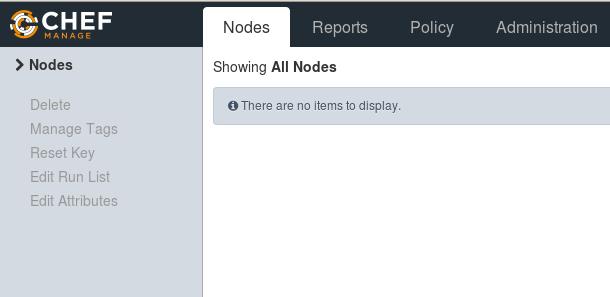
Chef Workstation
I use the physical machine for Chef Workstation.
Install it via:
$ sudo dpkg -i chef_12.3.0-1_amd64.deb
Fetch back the chef repository from github, configure it and add the ignore directory:
$ git clone https://github.com/opscode/chef-repo.git
$ cd chef-repo
$ mkdir .chef
$ echo ".chef">>~/chef-repo/.gitignore
$ git add .
$ git commit -m "Exclude the ./.chef directory from version control"
[master 64515ff] Exclude the ./.chef directory from version control
 1 file changed, 1 insertion(+)
Install the chefdk, and verify the chef, you should see all of the components OK, then you could continue for next step:
$ sudo dpkg -i chefdk_0.6.0-1_amd64.deb
$ chef verify
Transfer all of the pem file from the ChefServer to ChefWorkstation, and put them under the folder of ~/chef-repo/.chef:
$ scp xxx@xxxxx:/home/xxx/*.pem xxxx@ChefWorkstation:/home/xxxx/chef-repo/.chef
Add following item under the Workstation’s configuration:
$ sudo vim /etc/hosts
XXX.xxx.xxx.xxx  ChefServer
Now configure the knife.rb and let your authentification be verified.
$ vim ~/chef-repo/.chef/knife.rb
current_dir = File.dirname(__FILE__)
log_level                :info
log_location             STDOUT
node_name                "xxxxxxxxx"
client_key               "#{current_dir}/xxxxxxxxx.pem"
validation_client_name   "xxxxxxxxx_org"
validation_key           "#{current_dir}/xxxxxxxxx_org.pem"
chef_server_url          "https://ChefServer/organizations/xxxxxxxxx"
syntax_check_cache_path  "#{ENV['HOME']}/.chef/syntaxcache"
cookbook_path            ["#{current_dir}/../cookbooks"]
$ knife ssl fetch
WARNING: Certificates from ChefServer will be fetched and placed in your trusted_cert
directory (/home/dash/chef-repo/.chef/trusted_certs).

Knife has no means to verify these are the correct certificates. You should
verify the authenticity of these certificates after downloading.

Adding certificate for ChefServer in /home/xxxx/chef-repo/.chef/trusted_certs/ChefServer.crt
$ knife ssl check
Connecting to host ChefServer:443
Successfully verified certificates from `ChefServer'
Check how many clients has been added into the ChefServer, currently only one,
$ knife client list
xxxxxx-validator
Added Nodes
In Client1, Install the
$ sudo dpkg -i chef_12.3.0-1_amd64.deb
Add the pem files to every nodes:
# knife bootstrap Client1 -x xxxxxx -P XXXXXXXXXXXXX --sudo
If above steps fail, you should manually specify the ssl verification.
# scp Server/xxx.pem /home/xxxxx
# cp /home/xxxx/xxx.pem /etc/chef/validation.pem
# sudo chef-client -l debug -S https://ChefServer/organizations/xxxxx -K /etc/chef/validation.pem
##### OR
#  sudo chef-client -l debug -S https://ChefServer/organizations/xxxxx  -K /home/xxxx/xxxxx.pem
Bootstrap again:
# knife bootstrap Client1 -N ChefClient1 -x xxxxx -P xxxxxx --sudo --use-sudo-password
After bootstrap success, list all of the client:
root@ChefWorkstation:~/chef-repo# knife client list
ChefClient1
xxxx-validator
Using Cookbook
Create the Cookbook named nginx:
root@ChefWorkstation:~# cd chef-repo/
root@ChefWorkstation:~/chef-repo# ls
chefignore  cookbooks  data_bags  environments  LICENSE  README.md  roles
root@ChefWorkstation:~/chef-repo# knife cookbook create nginx
oot@ChefWorkstation:~/chef-repo/cookbooks/nginx# ls
attributes  CHANGELOG.md  definitions  files  libraries  metadata.rb  providers  README.md  recipes  resources  templates
Edit the cookbook:
Enable the installation:
# vim recipes/default.rb
package 'nginx' do
  action :install
end
Enable check the status:
service 'nginx' do
  action [ :enable, :start ]
end
Change the index.html file:
cookbook_file "/usr/share/nginx/html/index.html" do
  source "index.html"
  mode "0644"
end
Prepare the default index.html file:
$ cd ~/chef-repo/cookbooks/nginx/files/default
$ vim index.html
<html>
  <head>
    <title>Hello there</title>
  </head>
  <body>
    <h1>This is a test</h1>
    <p>Please work!</p>
  </body>
</html>
Since the nginx need apt-get to achive the latest status, add another package named apt:
knife cookbook create apt
Edit the default rb file:
vim ~/chef-repo/cookbooks/apt/recipes/default.rb
execute "apt-get update" do
  command "apt-get update"
end
Change the default rb file of the nginx:
+++ include_recipe "apt"

package 'nginx' do
  action :install
end
Also add it to the metadata.rb file:
$ vim ~/chef-repo/cookbooks/nginx/metadata.rb

long_description IO.read(File.join(File.dirname(__FILE__), 'README.md'))
version          '0.1.0'

+++  depends "apt"
Add Cookbook to your nodes:
knife cookbook upload apt
knife cookbook upload nginx
Or
knife cookbook upload -a
Edit the specified node:
knife node edit name_of_node

{
  "name": "client1",
  "chef_environment": "_default",
  "normal": {
    "tags": [

    ]
  },
  "run_list": [

+++ "recipe[name_of_recipe1]",
+++ "recipe[name_of_recipe2]"

  ]
}
In every want-to-deploy nodes, run:
$ sudo chef-client
Use Market
Download and use the knife
$ knife cookbook site download learn_chef_apache2
$ tar xzvf learn_chef_apache2-0.2.1.tar.gz -C cookbooks/
$ knife cookbook  upload -a
Besure to edit the node’s recipes.
Two tips:
Remove the cookbook from the server’s list:
# knife cookbook delete learn_chef_apache2 0.2.1
Directly remove the recipe from the node:
# knife node run_list remove ChefClient1 recipe[nginx]
# knife node run_list remove ChefClient1 recipe[eclipse]
May 25, 2015
TechnologyGet the existing subnet:
root@Controller:~# neutron subnet-list
+--------------------------------------+-------------+----------------+--------------------------------------------------+
| id                                   | name        | cidr           | allocation_pools                                 |
+--------------------------------------+-------------+----------------+--------------------------------------------------+
| 98725e3a-7ee2-4e3f-83e3-eaca0236918f | demo-subnet | 192.168.1.0/24 | {"start": "192.168.1.2", "end": "192.168.1.254"} |
+--------------------------------------+-------------+----------------+--------------------------------------------------+
Delete it via:
root@Controller:~# neutron subnet-delete --name demo-subnet
Unable to complete operation on subnet 98725e3a-7ee2-4e3f-83e3-eaca0236918f. One or more ports have an IP allocation from this subnet. (HTTP 409) (Request-ID: req-7d729bcc-ec50-4de6-83d9-5d2b98332127)
Because we have the router, so we list the router via:
root@Controller:~# neutron router-list
+--------------------------------------+-------------+-----------------------+
| id                                   | name        | external_gateway_info |
+--------------------------------------+-------------+-----------------------+
| a745487e-8e7c-4cc2-aff7-a8423d0a6614 | demo-router | null                  |
+--------------------------------------+-------------+-----------------------+
Get the ports of this router:
root@Controller:~# neutron router-port-list a745487e-8e7c-4cc2-aff7-a8423d0a6614
+--------------------------------------+------+-------------------+------------------------------------------------------------------------------------+
| id                                   | name | mac_address       | fixed_ips                                                                          |
+--------------------------------------+------+-------------------+------------------------------------------------------------------------------------+
| e56fe57e-e939-493b-8984-b5adfa64e2cc |      | fa:16:3e:b3:7b:e6 | {"subnet_id": "98725e3a-7ee2-4e3f-83e3-eaca0236918f", "ip_address": "192.168.1.1"} |
+--------------------------------------+------+-------------------+------------------------------------------------------------------------------------+
So we remove the interface from this router via:
root@Controller:~# neutron router-interface-delete demo-router 98725e3a-7ee2-4e3f-83e3-eaca0236918f
Removed interface from router demo-router.
root@Controller:~# neutron router-port-list a745487e-8e7c-4cc2-aff7-a8423d0a6614
Now we could remove the router and the subnet:
root@Controller:~# neutron router-delete demo-router
Deleted router: demo-router
root@Controller:~# neutron subnet-delete demo-subnet
Deleted subnet: demo-subnet
From now on ,you could create another subnet and router.
May 25, 2015
TechnologyNeutron和nova-network的区别在于,nova-network可以让你在每个instance上部署一种网络类型,适合基本的网络功能。而Neutron则使得你可以在一个instance上部署多种网络类型,并且以插件的方式支持多种虚拟化网络。
详细的介绍,以后慢慢加,理解吃透了再加上来,这里单单提操作步骤。
准备
数据库准备如下:
root@Controller:~# mysql -u root -p
Enter password:
Welcome to the MariaDB monitor.  Commands end with ; or \g.
Your MariaDB connection id is 39
Server version: 5.5.43-MariaDB-1ubuntu0.14.04.2 (Ubuntu)

Copyright (c) 2000, 2015, Oracle, MariaDB Corporation Ab and others.

Type 'help;' or '\h' for help. Type '\c' to clear the current input statement.

MariaDB [(none)]> CREATE DATABASE neutron;
Query OK, 1 row affected (0.00 sec)

MariaDB [(none)]> GRANT ALL PRIVILEGES ON neutron.* TO 'neutron'@'localhost' IDENTIFIED BY 'xxxxx';
Query OK, 0 rows affected (0.00 sec)

MariaDB [(none)]> GRANT ALL PRIVILEGES ON neutron.* TO 'neutron'@'%' IDENTIFIED BY 'xxxxx';
Query OK, 0 rows affected (0.00 sec)

MariaDB [(none)]> quit;
Bye
配置服务
root@Controller:~# source admin-openrc.sh
root@Controller:~# keystone user-create --name neutron --pass xxxxx
+----------+----------------------------------+
| Property |              Value               |
+----------+----------------------------------+
|  email   |                                  |
| enabled  |               True               |
|    id    | a6d790e8e86749bba1d27972de8eaae2 |
|   name   |             neutron              |
| username |             neutron              |
+----------+----------------------------------+
root@Controller:~# keystone user-role-add --user neutron --tenant service --role admin
root@Controller:~# keystone service-create --name neutron --type network --description "OpenStack Networking"
+-------------+----------------------------------+
|   Property  |              Value               |
+-------------+----------------------------------+
| description |       OpenStack Networking       |
|   enabled   |               True               |
|      id     | 2f6de710ec414797a4a639c2310c8249 |
|     name    |             neutron              |
|     type    |             network              |
+-------------+----------------------------------+
root@Controller:~# keystone endpoint-create --service-id $(keystone service-list | awk '/ network / {print $2}') --publicurl http://Controller:9696 --adminurl http://Controller:9696 --internalurl http://Controller:9696 --region regionOne
+-------------+----------------------------------+
|   Property  |              Value               |
+-------------+----------------------------------+
|   adminurl  |      http://Controller:9696      |
|      id     | a23132fd0a824aa09f3b1ea72cbb97d2 |
| internalurl |      http://Controller:9696      |
|  publicurl  |      http://Controller:9696      |
|    region   |            regionOne             |
|  service_id | 2f6de710ec414797a4a639c2310c8249 |
+-------------+----------------------------------+
安装和配置网络组件
安装下列包:
# apt-get install neutron-server neutron-plugin-ml2 python-neutronclient
在Controller节点上开始配置:
$ sudo vim /etc/neutron/neutron.conf
[database]
...
connection = mysql://neutron:NEUTRON_DBPASS@Controller/neutron
配置rabbitMQ认证方式:
[DEFAULT]
...
rpc_backend = rabbit
rabbit_host = Controller
rabbit_password = RABBIT_PASS
配置keystone认证:
[DEFAULT]
...
auth_strategy = keystone

#### 删除已有的keystone authtoken配置方式
[keystone_authtoken]
...
auth_uri = http://Controller:5000/v2.0
identity_uri = http://Controller:35357
admin_tenant_name = service
admin_user = neutron
admin_password = NEUTRON_PASS
激活ML2插件(Modular Layer 2), router服务, 和overlapping IP地址:
[DEFAULT]
...
core_plugin = ml2
service_plugins = router
allow_overlapping_ips = True
配置网络,以便在网络拓扑发生变化时告知Compute节点:
[DEFAULT]
...
notify_nova_on_port_status_changes = True
notify_nova_on_port_data_changes = True
nova_url = http://Controller:8774/v2
nova_admin_auth_url = http://Controller:35357/v2.0
nova_region_name = regionOne
nova_admin_username = nova
nova_admin_tenant_id = SERVICE_TENANT_ID
nova_admin_password = NOVA_PASS
SERVICE_TENANT_ID 通过以下命令来获得:
$ source admin-openrc.sh
$ keystone tenant-get service
+-------------+----------------------------------+
|   Property  |              Value               |
+-------------+----------------------------------+
| description |          Service Tenant          |
|   enabled   |               True               |
|      id     | 08a675be93a04cca8a74159a3eefa288 |
|     name    |             service              |
+-------------+----------------------------------+
可以自定义打开verbose选项:
[DEFAULT]
...
verbose = True
配置Modular Layer2(ML2)插件:
在[ml2]部分,激活flat and generic routing encapsulation(GRE) network类型驱动, GRE Tenant网络和OVS机制驱动:
$ sudo vim /etc/neutron/plugins/ml2/ml2_conf.ini
[ml2]
...
type_drivers = flat,gre
tenant_network_types = gre
mechanism_drivers = openvswitch
[ml2_type_gre] 部分,配置tunnel identifier(id)范围:
[ml2_type_gre]
...
tunnel_id_ranges = 1:1000
配置securitygroup部分,
[securitygroup]
...
enable_security_group = True
enable_ipset = True
firewall_driver = neutron.agent.linux.iptables_firewall.OVSHybridIptablesFirewallDriver
配置计算服务使用网络:
$ sudo vim /etc/nova/nova.conf
[DEFAULT]
...
network_api_class = nova.network.neutronv2.api.API
security_group_api = neutron
linuxnet_interface_driver = nova.network.linux_net.LinuxOVSInterfaceDriver
firewall_driver = nova.virt.firewall.NoopFirewallDriver
在[neutron]部分,配置访问参数:
[neutron]
...
url = http://Controller:9696
auth_strategy = keystone
admin_auth_url = http://Controller:35357/v2.0
admin_tenant_name = service
admin_username = neutron
admin_password = NEUTRON_PASS
完成安装:
# su -s /bin/sh -c "neutron-db-manage --config-file /etc/neutron/neutron.conf --config-file /etc/neutron/plugins/ml2/ml2_conf.ini upgrade juno" neutron
# service nova-api restart
# service nova-scheduler restart
# service nova-conductor restart
# service neutron-server restart
验证:
root@Controller:~# source admin-openrc.sh
root@Controller:~# neutron ext-list
+-----------------------+-----------------------------------------------+
| alias                 | name                                          |
+-----------------------+-----------------------------------------------+
| security-group        | security-group                                |
| l3_agent_scheduler    | L3 Agent Scheduler                            |
| ext-gw-mode           | Neutron L3 Configurable external gateway mode |
| binding               | Port Binding                                  |
| provider              | Provider Network                              |
| agent                 | agent                                         |
| quotas                | Quota management support                      |
| dhcp_agent_scheduler  | DHCP Agent Scheduler                          |
| l3-ha                 | HA Router extension                           |
| multi-provider        | Multi Provider Network                        |
| external-net          | Neutron external network                      |
| router                | Neutron L3 Router                             |
| allowed-address-pairs | Allowed Address Pairs                         |
| extraroute            | Neutron Extra Route                           |
| extra_dhcp_opt        | Neutron Extra DHCP opts                       |
| dvr                   | Distributed Virtual Router                    |
+-----------------------+-----------------------------------------------+
配置网络节点
安装以下包:
# apt-get install neutron-plugin-ml2 neutron-plugin-openvswitch-agent neutron-l3-agent neutron-dhcp-agent
配置, 首先,删除/etc/neutron/neutron.conf里所有的database连接,因为网络节点不需要任何数据库连接。
$ sudo vim /etc/neutron/neutron.conf
[DEFAULT]
...
rpc_backend = rabbit
rabbit_host = controller
rabbit_password = RABBIT_PASS
更改keystone认证方式:
[DEFAULT]
...
auth_strategy = keystone
[keystone_authtoken]
...
auth_uri = http://controller:5000/v2.0
identity_uri = http://controller:35357
admin_tenant_name = service
admin_user = neutron
admin_password = NEUTRON_PASS
有关[ml2]的配置:
[DEFAULT]
...
core_plugin = ml2
service_plugins = router
allow_overlapping_ips = True
接着:
$ sudo vim /etc/neutron/plugins/ml2/ml2_conf
[ml2]
...
type_drivers = flat,gre
tenant_network_types = gre
mechanism_drivers = openvswitch
[ml2_type_flat]
...
flat_networks = external
[ml2_type_gre]
...
tunnel_id_ranges = 1:1000
[securitygroup]
...
enable_security_group = True
enable_ipset = True
firewall_driver = neutron.agent.linux.iptables_firewall.OVSHybridIptablesFirewallDriver
[ovs]
...
local_ip = INSTANCE_TUNNELS_INTERFACE_IP_ADDRESS
enable_tunneling = True
bridge_mappings = external:br-ex
[agent]
...
tunnel_types = gre
配置Layer-3客户端:
$ sudo vim /etc/neutron/l3_agent.ini
[DEFAULT]
...
interface_driver = neutron.agent.linux.interface.OVSInterfaceDriver
use_namespaces = True
external_network_bridge = br-ex
router_delete_namespaces = True
配置DHCP客户端:
$ sudo vim /etc/neutron/dhcp_agent.init
[DEFAULT]
...
interface_driver = neutron.agent.linux.interface.OVSInterfaceDriver
dhcp_driver = neutron.agent.linux.dhcp.Dnsmasq
use_namespaces = True
dhcp_delete_namespaces = True

[DEFAULT]
...
dnsmasq_config_file = /etc/neutron/dnsmasq-neutron.conf
配置dnsmasq配置文件:
$ sudo vim /etc/neutron/dnsmasq_neutron.conf
dhcp-option-force=26,1454
$ sudo pkill dnsmasq
配置metadata客户端:
$ sudo vim /etc/neutron/metadata_agent.ini
[DEFAULT]
...
auth_url = http://controller:5000/v2.0
auth_region = regionOne
admin_tenant_name = service
admin_user = neutron
admin_password = NEUTRON_PASS

[DEFAULT]
...
nova_metadata_ip = controller

[DEFAULT]
...
metadata_proxy_shared_secret = METADATA_SECRET
对应的,在控制节点上,配置:
$ sudo vim /etc/nova/nova.conf
[neutron]
...
service_metadata_proxy = True
metadata_proxy_shared_secret = METADATA_SECRET
# service nova-api restart
配置Open vSwitch(OVS)服务:
# service openvswitch-switch restart
# ovs-vsctl add-br br-ex
# ovs-vsctl add-port br-ex INTERFACE_NAME
# service neutron-plugin-openvswitch-agent restart
# service neutron-l3-agent restart
# service neutron-dhcp-agent restart
# service neutron-metadata-agent restart
验证:
$ source admin-openrc.sh
$ neutron agent-list
计算节点配置
配置如下;
$ sudo vim /etc/sysctl.conf
net.ipv4.conf.all.rp_filter=0
net.ipv4.conf.default.rp_filter=0
# sysctl -p
安装网络组件:
# apt-get install neutron-plugin-ml2 neutron-plugin-openvswitch-agent
配置网络组件:
$ sudo vim /etc/neutron/neutron.conf
[DEFAULT]
...
rpc_backend = rabbit
rabbit_host = controller
rabbit_password = RABBIT_PASS
keystone组件:
[DEFAULT]
...
auth_strategy = keystone
[keystone_authtoken]
...
auth_uri = http://controller:5000/v2.0
identity_uri = http://controller:35357
admin_tenant_name = service
admin_user = neutron
admin_password = NEUTRON_PASS
[ml2]插件:
$ sudo vim /etc/neutron/neutron.conf
[DEFAULT]
...
core_plugin = ml2
service_plugins = router
allow_overlapping_ips = True
继续配置ml2插件:
$ sudo vim /etc/neutron/plugins/ml2/ml2_conf.ini
[ml2]
...
type_drivers = flat,gre
tenant_network_types = gre
mechanism_drivers = openvswitch

[ml2_type_gre]
...
tunnel_id_ranges = 1:1000

[securitygroup]
...
enable_security_group = True
enable_ipset = True
firewall_driver = neutron.agent.linux.iptables_firewall.OVSHybridIptablesFirewallDriver

[ovs]
...
local_ip = INSTANCE_TUNNELS_INTERFACE_IP_ADDRESS
enable_tunneling = True

[agent]
...
tunnel_types = gre
配置OVS服务:
# service openvswitch-switch restart
配置计算节点使用网络:
$ sudo vim /etc/nova/nova.conf
[DEFAULT]
...
network_api_class = nova.network.neutronv2.api.API
security_group_api = neutron
linuxnet_interface_driver = nova.network.linux_net.LinuxOVSInterfaceDriver
firewall_driver = nova.virt.firewall.NoopFirewallDriver

[neutron]
...
url = http://controller:9696
auth_strategy = keystone
admin_auth_url = http://controller:35357/v2.0
admin_tenant_name = service
admin_username = neutron
admin_password = NEUTRON_PASS
完成安装:
# service nova-compute restart
# service neutron-plugin-openvswitch-agent restart
验证, 在Controller节点上:
$ source admin-openrc.sh
$ neutron agent-list
创建初始化网络
步骤如下:
创建外网:
# source admin-openrc.sh
# neutron net-create ext-net --router:external True \
--provider:physical_network external --provider:network_type flat
# neutron subnet-create ext-net --name ext-subnet \
--allocation-pool start=10.77.77.200,end=10.77.77.220 \
--disable-dhcp --gateway 10.77.77.1 10.77.77.0/24
租户网络:
$ source demo-openrc.sh
$ neutron net-create demo-net
$ neutron subnet-create demo-net --name demo-subnet \
--gateway 10.10.10.1 10.10.10.0/24
$ neutron router-create demo-router
$ neutron router-interface-add demo-router demo-subnet
$ neutron router-gateway-set demo-router ext-net
验证, 因为我们用了10.77.77.200~220作为外网的floating IP, 所以路由器外网的IP应该落在10.77.77.200上,在计算节点上直接ping, 看结果:
dash@PowerfulDash:~$ ping 10.77.77.200
PING 10.77.77.200 (10.77.77.200) 56(84) bytes of data.
64 bytes from 10.77.77.200: icmp_seq=1 ttl=64 time=0.323 ms
64 bytes from 10.77.77.200: icmp_seq=2 ttl=64 time=0.177 ms
64 bytes from 10.77.77.200: icmp_seq=3 ttl=64 time=0.141 ms
其实上面的结果是在Host机器上Ping的,因host机器已经有了10.77.77.1地址,理论上,如果能Ping通10.77.77.200,证明Router工作正常。
Horizon
在控制节点上安装以下包 :
# apt-get install openstack-dashboard apache2 libapache2-mod-wsgi memcached python-memcache
配置:
# vim /etc/openstack-dashboard/local_settings.py
OPENSTACK_HOST = "controller"
ALLOWED_HOSTS = ['*']
CACHES = {
'default': {
'BACKEND': 'django.core.cache.backends.memcached.
MemcachedCache',
'LOCATION': '127.0.0.1:11211',
}
}
TIME_ZONE = "TIME_ZONE"
重启服务:
# service apache2 restart
# service memcached restart
最后访问:
http://Controller/horizon 来看到结果.
May 25, 2015
TechnologyNova
Nova数据库
创建nova数据库:
# mysql -u root -p
	CREATE DATABASE nova;
	GRANT ALL PRIVILEGES ON nova.* TO 'nova'@'localhost' \
	IDENTIFIED BY 'NOVA_DBPASS';
	GRANT ALL PRIVILEGES ON nova.* TO 'nova'@'%' \
	IDENTIFIED BY 'NOVA_DBPASS';
	quit;
创建nova用户:
# source /home/dash/admin-openrc.sh
root@Controller:~# keystone user-create --name nova --pass xxxxxx
+----------+----------------------------------+
| Property |              Value               |
+----------+----------------------------------+
|  email   |                                  |
| enabled  |               True               |
|    id    | 4a3768e3f4754cd0b9d47c6fadb22c7e |
|   name   |               nova               |
| username |               nova               |
+----------+----------------------------------+
为admin角色添加nova用户:
# keystone user-role-add --user nova --tenant service --role admin
添加nova服务条目:
# keystone service-create --name nova --type compute --description "OpenStack Compute"
+-------------+----------------------------------+
|   Property  |              Value               |
+-------------+----------------------------------+
| description |        OpenStack Compute         |
|   enabled   |               True               |
|      id     | 1587a46ee1e94402821398444175981f |
|     name    |               nova               |
|     type    |             compute              |
创建Compute服务的API endpoints:
# keystone endpoint-create --service-id $(keystone service-list | awk '/ compute / {print $2}') --publicurl http://Controller:8774/v2/%\(tenant_id\)s --internalurl http://Controller:8774/v2/%\(tenant_id\)s --adminurl http://Controller:8774/v2/%\(tenant_id\)s --region regionOne
+-------------+-----------------------------------------+
|   Property  |                  Value                  |
+-------------+-----------------------------------------+
|   adminurl  | http://Controller:8774/v2/%(tenant_id)s |
|      id     |     bd439dc236c04956a11b353a7b74331c    |
| internalurl | http://Controller:8774/v2/%(tenant_id)s |
|  publicurl  | http://Controller:8774/v2/%(tenant_id)s |
|    region   |                regionOne                |
|  service_id |     1587a46ee1e94402821398444175981f    |
+-------------+-----------------------------------------+
Nova安装及配置
安装以下包:
# apt-get install nova-api nova-cert nova-conductor nova-consoleauth nova-novncproxy nova-scheduler python-novaclient
更改数据库链接:
$ sudo vim /etc/nova/nova.conf
[database]
...
connection = mysql://nova:NOVA_DBPASS@controller/nova
配置RabbitMQ访问:
[DEFAULT]
...
rpc_backend = rabbit
rabbit_host = controller
rabbit_password = RABBIT_PASS
配置鉴权服务:
[DEFAULT]
...
auth_strategy = keystone
[keystone_authtoken]
...
auth_uri = http://controller:5000/v2.0
identity_uri = http://controller:35357
admin_tenant_name = service
admin_user = nova
admin_password = NOVA_PASS
更改my_ip:
[DEFAULT]
...
my_ip = 10.55.55.2
更改VNC侦听:
[DEFAULT]
...
vncserver_listen = 10.55.55.2
vncserver_proxyclient_address = 10.55.55.2
配置glance服务所在:
[glance]
...
host = controller
现在开始配置数据库:
# su -s /bin/sh -c "nova-manage db sync" nova
重启服务以完成安装:
# service nova-api restart
# service nova-cert restart
# service nova-consoleauth restart
# service nova-scheduler restart
# service nova-conductor start
# service nova-conductor restart
# service nova-novncproxy
# service nova-novncproxy restart
扫尾,删除不用的sqlite数据库:
# rm -f /var/lib/nova/nova.sqlite
安装和配置计算节点
在计算节点上,安装以下包:
# apt-get install nova-compute sysfsutils
配置具体过程如下:
配置RabbitMQ:
$ sudo vim /etc/nova/nova.conf
[DEFAULT]
...
rpc_backend = rabbit
rabbit_host = controller
rabbit_password = RABBIT_PASS
配置鉴权服务:
[DEFAULT]
...
auth_strategy = keystone
[keystone_authtoken]
...
auth_uri = http://Controller:5000/v2.0
identity_uri = http://Controller:35357
admin_tenant_name = service
admin_user = nova
admin_password = NOVA_PASS
配置my_ip:
[DEFAULT]
...
my_ip = 10.55.55.4
配置允许远程终端访问:
[DEFAULT]
...
vnc_enabled = True
vncserver_listen = 0.0.0.0
vncserver_proxyclient_address = 10.55.55.4
novncproxy_base_url = http://Controller:6080/vnc_auto.html
配置glance服务:
[glance]
...
host = Controller
完成安装, 首先判断你的CPU是否支持硬件加速:
$ egrep -c '(vmx|svm)' /proc/cpuinfo
如果返回的值小于1, 则更改/etc/nova/nova-compute.conf配置中的[libvirt]选项,选用qemu而不是kvm:
$ sudo vim /etc/nova/nova-compute.conf
[libvirt]
...
virt_type = qemu
重启nova-compute服务:
# service nova-compute restart
扫尾,删除不用的nova.sqlite文件:
# rm -f /var/lib/nova/nova.sqlite
验证
具体步骤如下:
root@Controller:~# source ~/admin-openrc.sh
root@Controller:~# nova service-list
+----+------------------+------------+----------+---------+-------+----------------------------+-----------------+
| Id | Binary           | Host       | Zone     | Status  | State | Updated_at                 | Disabled Reason |
+----+------------------+------------+----------+---------+-------+----------------------------+-----------------+
| 1  | nova-cert        | Controller | internal | enabled | up    | 2015-05-25T12:00:20.000000 | -               |
| 2  | nova-consoleauth | Controller | internal | enabled | up    | 2015-05-25T12:00:28.000000 | -               |
| 3  | nova-scheduler   | Controller | internal | enabled | up    | 2015-05-25T12:00:23.000000 | -               |
| 4  | nova-conductor   | Controller | internal | enabled | up    | 2015-05-25T12:00:25.000000 | -               |
| 5  | nova-compute     | Compute    | nova     | enabled | up    | 2015-05-25T12:00:20.000000 | -               |
+----+------------------+------------+----------+---------+-------+----------------------------+-----------------+
root@Controller:~# nova image-list
+--------------------------------------+---------------------+--------+--------+
| ID                                   | Name                | Status | Server |
+--------------------------------------+---------------------+--------+--------+
| 3d45ea58-731c-4eb5-bf30-db1b4bfe4f57 | cirros-0.3.3-x86_64 | ACTIVE |        |
+--------------------------------------+---------------------+--------+--------+
注意我们看到了compute节点已经被加入进来。这样我们完成了添加计算服务,接下来我们将开始添加网络组件,这可能是最难的一部分。
