Enlarge RootFS In CentOS7

Disk Preparation

Create a new disk via following command in host machine:

# qemu-img create -f qcow2 Added.qcow2 200G

Boot the machine and you will have the newly added disk as /dev/vdb, format it via fdisk.

[root@spacewalker ~]# fdisk /dev/vdb
Welcome to fdisk (util-linux 2.23.2).

Changes will remain in memory only, until you decide to write them.
Be careful before using the write command.

Device does not contain a recognized partition table
Building a new DOS disklabel with disk identifier 0x694e59ec.

Command (m for help): n
Partition type:
   p   primary (0 primary, 0 extended, 4 free)
   e   extended
Select (default p): p
Partition number (1-4, default 1): 
First sector (2048-419430399, default 2048): 
Using default value 2048
Last sector, +sectors or +size{K,M,G} (2048-419430399, default 419430399): 
Using default value 419430399
Partition 1 of type Linux and of size 200 GiB is set

Command (m for help): t
Selected partition 1
Hex code (type L to list all codes): 8e
Changed type of partition 'Linux' to 'Linux LVM'

Command (m for help): w
The partition table has been altered!

Calling ioctl() to re-read partition table.
Syncing disks.

You can use partprobe /dev/sda for probing the partitions.

Physical Volume

Create a physical volume and display the pv:

[root@spacewalker ~]# pvcreate /dev/vdb1
  Physical volume "/dev/vdb1" successfully created
[root@spacewalker ~]# pvdisplay 
  --- Physical volume ---
  PV Name               /dev/vda3
  VG Name               rootvg01
  PV Size               96.46 GiB / not usable 23.00 MiB
  Allocatable           yes (but full)
  PE Size               32.00 MiB
  Total PE              3086
  Free PE               0
  Allocated PE          3086
  PV UUID               rq51pP-o3Pw-8mMs-kBiN-wLva-nfLf-Svd9uk
   
  "/dev/vdb1" is a new physical volume of "200.00 GiB"
  --- NEW Physical volume ---
  PV Name               /dev/vdb1
  VG Name               
  PV Size               200.00 GiB
  Allocatable           NO
  PE Size               0   
  Total PE              0
  Free PE               0
  Allocated PE          0
  PV UUID               cPijvf-qPYT-w4yi-MsFo-yEHs-O9t8-6FmXUU

Add pv into VG(Volume group)

First vgdisplay for get the VG name, then added it into vg, check the free pe, now its 200 GiB available.

[root@spacewalker ~]# vgdisplay 
  --- Volume group ---
  VG Name               rootvg01
  System ID             
  Format                lvm2
  Metadata Areas        1
  Metadata Sequence No  2
  VG Access             read/write
  VG Status             resizable
  MAX LV                0
  Cur LV                1
  Open LV               1
  Max PV                0
  Cur PV                1
  Act PV                1
  VG Size               96.44 GiB
  PE Size               32.00 MiB
  Total PE              3086
  Alloc PE / Size       3086 / 96.44 GiB
  Free  PE / Size       0 / 0   
  VG UUID               U98QSe-V6Kv-aYSf-cSsp-ln0H-IhuS-1oNsgV
   
[root@spacewalker ~]# vgextend  rootvg01 /dev/vdb1
  Volume group "rootvg01" successfully extended
[root@spacewalker ~]# vgdisplay 
  --- Volume group ---
  VG Name               rootvg01
  System ID             
  Format                lvm2
  Metadata Areas        2
  Metadata Sequence No  3
  VG Access             read/write
  VG Status             resizable
  MAX LV                0
  Cur LV                1
  Open LV               1
  Max PV                0
  Cur PV                2
  Act PV                2
  VG Size               296.41 GiB
  PE Size               32.00 MiB
  Total PE              9485
  Alloc PE / Size       3086 / 96.44 GiB
  Free  PE / Size       6399 / 199.97 GiB
  VG UUID               U98QSe-V6Kv-aYSf-cSsp-ln0H-IhuS-1oNsgV

Enlarge the lv

Use following command for first get the lv name, then lvextend to the most available space of the volume group.

[root@spacewalker ~]# lvdisplay 
  --- Logical volume ---
  LV Path                /dev/rootvg01/lv01
  LV Name                lv01
  VG Name                rootvg01
  LV UUID                5U4JM5-nG7G-TdPd-6zZ0-fE05-oysa-jEJHQu
  LV Write Access        read/write
  LV Creation host, time localhost, 2015-07-29 18:11:18 +0800
  LV Status              available
  # open                 1
  LV Size                96.44 GiB
  Current LE             3086
  Segments               1
  Allocation             inherit
  Read ahead sectors     auto
  - currently set to     8192
  Block device           253:0
   
[root@spacewalker ~]# lvextend -l +100%FREE /dev/rootvg01/lv01 
  Size of logical volume rootvg01/lv01 changed from 96.44 GiB (3086 extents) to 296.41 GiB (9485 extents).
  Logical volume lv01 successfully resized
[root@spacewalker ~]# lvdisplay 
  --- Logical volume ---
  LV Path                /dev/rootvg01/lv01
  LV Name                lv01
  VG Name                rootvg01
  LV UUID                5U4JM5-nG7G-TdPd-6zZ0-fE05-oysa-jEJHQu
  LV Write Access        read/write
  LV Creation host, time localhost, 2015-07-29 18:11:18 +0800
  LV Status              available
  # open                 1
  LV Size                296.41 GiB
  Current LE             9485
  Segments               2
  Allocation             inherit
  Read ahead sectors     auto
  - currently set to     8192
  Block device           253:0

Enlarge in the system level:

[root@spacewalker ~]# df -HT
Filesystem                Type      Size  Used Avail Use% Mounted on
/dev/mapper/rootvg01-lv01 xfs       104G   19G   85G  19% /
devtmpfs                  devtmpfs  1.1G     0  1.1G   0% /dev
tmpfs                     tmpfs     1.1G     0  1.1G   0% /dev/shm
tmpfs                     tmpfs     1.1G  8.7M  1.1G   1% /run
tmpfs                     tmpfs     1.1G     0  1.1G   0% /sys/fs/cgroup
/dev/vda1                 xfs       207M  111M   96M  54% /boot
[root@spacewalker ~]# xfs_growfs /dev/rootvg01/lv01 
meta-data=/dev/mapper/rootvg01-lv01 isize=256    agcount=4, agsize=6320128 blks
         =                       sectsz=512   attr=2, projid32bit=1
         =                       crc=0        finobt=0
data     =                       bsize=4096   blocks=25280512, imaxpct=25
         =                       sunit=0      swidth=0 blks
naming   =version 2              bsize=4096   ascii-ci=0 ftype=0
log      =internal               bsize=4096   blocks=12344, version=2
         =                       sectsz=512   sunit=0 blks, lazy-count=1
realtime =none                   extsz=4096   blocks=0, rtextents=0
data blocks changed from 25280512 to 77701120
[root@spacewalker ~]# df -HT
Filesystem                Type      Size  Used Avail Use% Mounted on
/dev/mapper/rootvg01-lv01 xfs       319G   19G  300G   6% /
devtmpfs                  devtmpfs  1.1G     0  1.1G   0% /dev
tmpfs                     tmpfs     1.1G     0  1.1G   0% /dev/shm
tmpfs                     tmpfs     1.1G  8.7M  1.1G   1% /run
tmpfs                     tmpfs     1.1G     0  1.1G   0% /sys/fs/cgroup
/dev/vda1                 xfs       207M  111M   96M  54% /boot

Now you could enjoy the 300G size diskspace.

Tips on ext4

The Steps are quite the same, but resize via following command:

# qemu-img resize xxx.qcow2 +300G
# lvextend -l +100%FREE /dev/vg_centos/lv_root 
# resize2fs /dev/vg_centos/lv_root 

Or you extend to specified disk size:

[root@csmgmt home]# lvextend -L +500G /dev/vg_centos/lv_root 
  Size of logical volume vg_centos/lv_root changed from 50.00 GiB (12800
extents) to 550.00 GiB (140800 extents).
  Logical volume lv_root successfully resized
[root@csmgmt home]# resize2fs /dev/vg_centos/lv_root 
Setup SpaceWalker Trusty Channel

Channel Definition

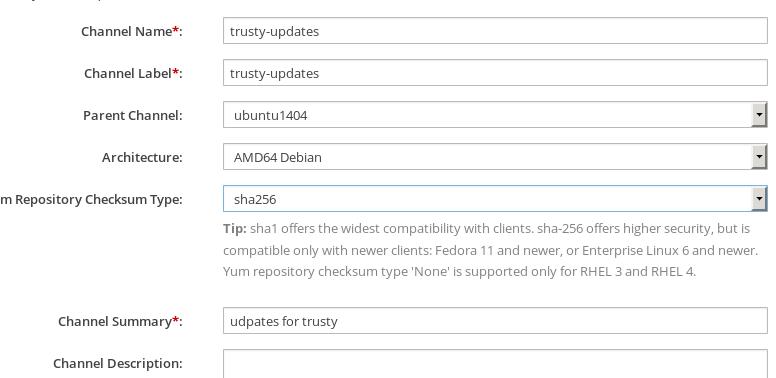
The definition for this channel should includes Architecture to ‘amd64-debian’, and Yum Repository to SHA256:

Yum Repository Checksum Type sha256 Architecture AMD64 Debian

Channel Definition

The definition for this channel should includes Architecture to ‘amd64-debian’, and Yum Repository to SHA256:

Yum Repository Checksum Type
sha256
Architecture
AMD64 Debian

Then create more channels with its parent channel to your named channel.

/images/2015_08_06_11_54_16_776x378.jpg

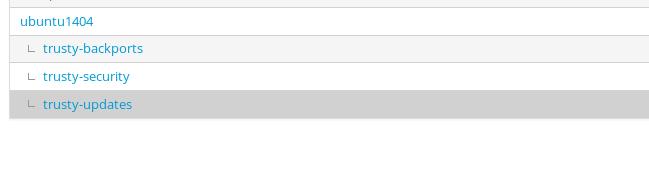
Also create trusty-security and trusty-backports, after all configuration, your channel would be looks like following:

/images/2015_08_06_11_57_47_649x191.jpg

Enable epel-testing and install python-debian:

# wget http://dl.fedoraproject.org/pub/epel/7/x86_64/e/epel-release-7-5.noarch.rpm
# rpm -ivh epel-release-7-5.noarch.rpm 
# yum-config-manager --enable epel-testing 
# cat epel-testing.repo
    [epel-testing]
    name=Extra Packages for Enterprise Linux 7 - Testing - $basearch
    #baseurl=http://download.fedoraproject.org/pub/epel/testing/7/$basearch
    #mirrorlist=https://mirrors.fedoraproject.org/metalink?repo=testing-epel7&arch=$basearch
    baseurl=http://mirrors.aliyun.com/epel/testing/7/x86_64/
# yum update python-debian

Patch the debfile.py:

# vim /usr/lib/python2.7/site-packages/debian/debfile.py
- PART_EXTS = ['gz', 'bz2', 'xz']   # possible extensions
+ PART_EXTS = ['gz', 'bz2', 'xz', 'lzma']   # possible extensions

Repo sync:

# git clone https://github.com/stevemeier/spacewalk-debian-sync.git
# cd spacewalk-debian-sync/
# mv spacewalk-debian-sync.pl /usr/bin/
# chmod 777 /usr/bin/spacewalk-debian-sync.pl
# yum install perl-WWW-Mechanize

Now sync the repository from remote server:

spacewalk-debian-sync.pl --username xxxxx --password xxxxx --channel 'trusty-backports' --url 'http://192.168.0.79/ubuntu/dists/trusty-backports/main/binary-amd64/'

After the sync finished, the channel will be setup.

Enable DHCP/DNS Server For SpaceWalker Server

DHCP Server

Install the dhcp server via:

# yum install -y dhcp

Then edit the configuration of /etc/dhcp/dhcpd.conf, like following:

#
# DHCP Server Configuration file.
#   see /usr/share/doc/dhcp*/dhcpd.conf.example
#   see dhcpd.conf(5) man page
#
# specify name server's hostname or IP address
option domain-name-servers 10.9.10.13;
# default lease time
default-lease-time 600;
# max lease time
max-lease-time 7200;
# this DHCP server to be declared valid
authoritative;
# specify network address and subnet mask
subnet 10.9.10.0 netmask 255.255.255.0 {
    # specify the range of lease IP address
    range dynamic-bootp 10.9.10.200 10.9.10.254;
    # specify broadcast address
    option broadcast-address 10.9.10.255;
    # specify default gateway
    option routers 10.9.10.1;
    # Specify default dns server
    option domain-name-servers 10.9.10.13;
}

Start the dhcpd server via:

# service dhcpd start

DNS Server(Bind9)

Just serve the private network. Install the bind9 via:

# yum install -y bind bind-utils

Our server’s name is spacewalker, need to map to 10.9.10.13, following is the configuration steps:
Edit the file of /etc/named.conf.

Change the listen address of port 53:

options {
        listen-on port 53 { 127.0.0.1; 10.9.10.13; };
#        listen-on-v6 port 53 { ::1; };
...

Also add the allow-query items, to let the local network nodes for querying its dns:

 allow-query     { localhost; 10.9.10.0/24;};

Add a new zone named spacewalker:

zone "spacewalker" {
        type master;
        file "/etc/named/zones/db.spacewalker";
};

Now add the zone definition file:

# vim /etc/named/zones/db.spacewalker
$TTL 604800
@       IN      SOA     spacewalker. root.spacewalker. (
                                3               ;Serial
                                604800          ;Refresh
                                86400           ;Retry
                                2419200         ;Expire
                                604800 )        ;Negative Cache TTL
;
; name servers - NS records
      IN      NS      spacewalker.

; name servers  - A records
spacewalker.         IN      A       10.9.10.13

Check the configuration file format:

# sudo named-checkconf
# sudo named-checkzone spacewalker /etc/named/zones/db.spacewalker 
zone spacewalker/IN: loaded serial 3
OK

Start bind9 service via:

# systemctl start named

If in CentOS6, then the steps may like following:

[root@spacewalk named]# service named start
Generating /etc/rndc.key:                                  [  OK  ]
Starting named:                                            [  OK  ]
[root@spacewalk named]# chkconfig --level 345 named on
[root@spacewalk named]# chkconfig --list named
named           0:off   1:off   2:off   3:on    4:on    5:on    6:off

You could verify the correctness by startup a live-cd and view its ping result of ping spacewalker.

Tips On Using SpaceWalker For Deploying CentOS7

Configuration

After SpaceWalker has been setup, the configuration we need to done is listed as following:

In /etc/rhn/rhn.conf change the value of the parameter cobbler.host to the ip address of the spacewalk server.
In /etc/cobbler/settings change the value of the parameters server and redhat_management_server to the ip-address of the spacewalk server.

Install cobbler bootloaders via:

# yum install -y cobbler-loaders

Build Customized ISO

via cobbler buildiso, and in the same folder you will get generated.iso.

Add Customized Channel

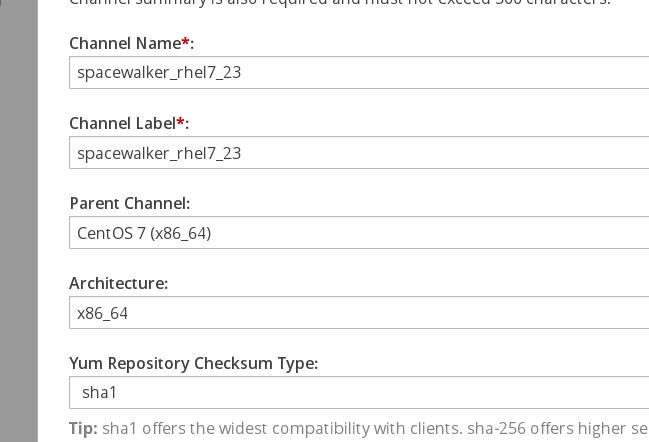
Under the Channel-> Management Software Channel-> Create New Channel.

/images/2015_08_05_16_50_50_649x442.jpg

Repo sync via:

# spacewalk-repo-sync -c spacewalker_rhel7_23 -u \ 
http://yum.spacewalkproject.org/2.3/RHEL/7/x86_64/

Add Ubuntu Deployment

Install SpaceWalk 2.2 Steps

Network Configuration

Make sure the following configuration in CentOS6:

# cat /etc/hosts
10.9.10.10      spacewalk
127.0.0.1       localhost
::1     localhost ip6-localhost ip6-loopback
fe00::0 ip6-localnet
ff00::0 ip6-mcastprefix
ff02::1 ip6-allnodes
ff02::2 ip6-allrouters

# cat /etc/sysconfig/network
NETWORKING=yes
NETWORKING_IPV6=no
HOSTNAME=localhost.localdomain
# cat /etc/hostname
spacewalk

Examine the result via:

[root@spacewalk ~]# hostname
spacewalk
[root@spacewalk ~]# hostname --fqdn
spacewalk

Packages Installation

First you should only have the following repo definition in the /etc/yum.repos.d/:

# wget -O /etc/yum.repos.d/CentOS-Base.repo \
http://mirrors.aliyun.com/repo/Centos-6.repo 
# wget -O /etc/yum.repos.d/epel.repo \ 
http://mirrors.aliyun.com/repo/epel-6.repo
# ls /etc/yum.repos.d/
CentOS-Base.repo  epel.repo

Install following package(For preparing the installation of the old SpaceWalk version):

# yum install -y jabberpy python-debian perl-Cache-Cache  jabberd python-hwdata net-snmp-perl perl-XML-LibXML perl-libxml-perl perl-Config-IniFiles perl-Net-IPv4Addr dojo perl-libxml-perl net-snmp-perl perl-Apache-Session perl-Apache-DBI  perl-Crypt-GeneratePassword perl-HTML-Table perl-XML-Generator perl-Net-SNMP perl-HTML-TableExtract perl-libapreq2

Now remove the epel.repo, add the following repo definition:

# rpm -Uvh http://yum.spacewalkproject.org/2.2/RHEL/6/x86_64/spacewalk-repo-2.2-1.el6.noarch.rpm
# vim /etc/yum.repos.d/jpackage.repo
[jpackage-generic]
name=JPackage generic
#baseurl=http://mirrors.dotsrc.org/pub/jpackage/5.0/generic/free/
mirrorlist=http://www.jpackage.org/mirrorlist.php?dist=generic&type=free&release=5.0
enabled=1
gpgcheck=1
gpgkey=http://www.jpackage.org/jpackage.asc

Install spacewalk via:

# yum install -y spacewalk-postgresql spacewalk-setup-postgresql spacecmd spacewalk-utils 

Use a pre-defined answer.txt for deployment:

# vim /root/answer.txt
admin-email = root@localhost
ssl-set-org = Spacewalk Org
ssl-set-org-unit = spacewalk
ssl-set-city = My City
ssl-set-state = My State
ssl-set-country = US
ssl-password = spacewalk
ssl-set-email = root@localhost
ssl-config-sslvhost = Y
db-backend=postgresql
db-name=spaceschema
db-user=spacewalk
db-password=spacewalk
db-host=localhost
db-port=5432
enable-tftp=N
# spacewalk-setup --disconnected --answer-file=/root/answer.txt

You may encounter following error,

*** Progress: ##
Could not install database.
# cat /var/log/rhn/install_db.log 
Initializing database: [  OK  ]
Starting postgresql service: [  OK  ]
createdb: database creation failed: ERROR:  encoding UTF8 does not match locale en_GB
DETAIL:  The chosen LC_CTYPE setting requires encoding LATIN1.

Solve it via:

# sudo su postgres
bash-4.1$ psql
could not change directory to "/root"
psql (8.4.20)
Type "help" for help.

postgres=# UPDATE pg_database SET datallowconn = TRUE WHERE datname = 'template0';
UPDATE 1
postgres=# UPDATE pg_database SET datistemplate = FALSE WHERE datname = 'template1';
UPDATE 1
postgres=# drop database template1;
DROP DATABASE
postgres=# CREATE DATABASE template1 ENCODING = 'utf8' TEMPLATE = template0 LC_CTYPE ='en_US.utf8' LC_COLLATE = 'en_US.utf8';
CREATE DATABASE
postgres=# UPDATE pg_database SET datistemplate = TRUE WHERE datname = 'template1';
UPDATE 1
postgres=# UPDATE pg_database SET datallowconn = FALSE WHERE datname = 'template0';
UPDATE 1
postgres=# \q
bash-4.1$ exit
exit

Run spacewalk-setup again, this time you will pass the installation.
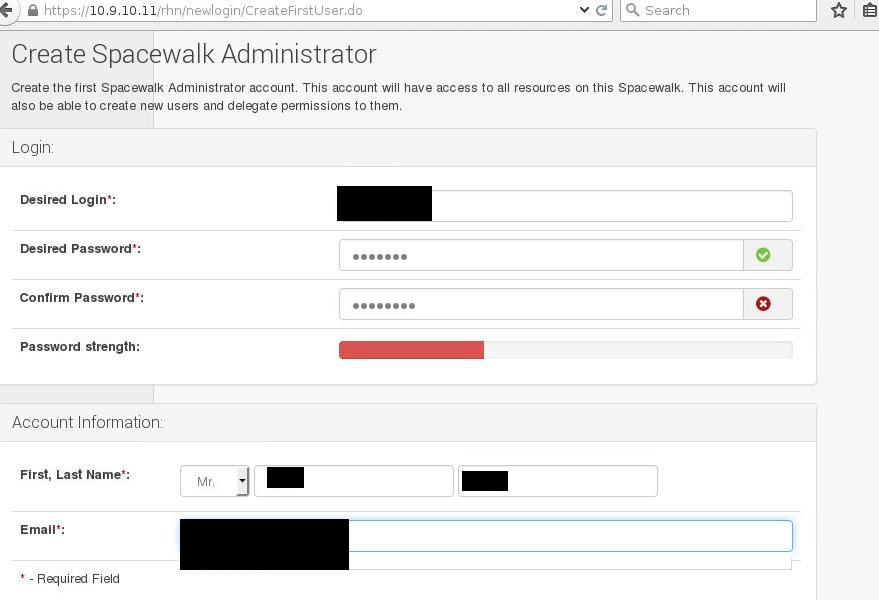
Visit http://YourIPAddress for setting the login name and password:

/images/2015_08_04_10_54_48_879x600.jpg

Prepare the distro trees for CentOS7.

# mkdir /var/distro-trees/centos7_64 -p
# chmod 755 /var/
# chmod 755 /var/distro-trees/
# chmod 755 /var/distro-trees/centos7_64/
# cp -ar /mnt1/* /var/distro-trees/centos7_64/

Create Channel:

# /usr/bin/spacewalk-common-channels -v -u Username -p Password \ 
-a x86_64 -k unlimited  'centos7*'

Create Repository:

#  spacecmd  -u Username -p Password -- distribution_create -n centos7 -p  /var/distro-trees/centos7_64/ -b centos7-x86_64 -t rhel_7

Now you could use the backend for creating the kickstart, via System-> KickStart-> Profile

Channel Package Upload

Uploading packages to the channel could consume lots of time, CentOS7 DVD have more than 8000 packages, thus takes around half a day for uploading.

# wget https://127.0.0.1/pub/RHN-ORG-TRUSTED-SSL-CERT -O \
/usr/share/rhn/RHN-ORG-TRUSTED-SSL-CERT --no-check-certificate 
# find . -name "*rpm" | xargs rhnpush --channel=centos7-x86_64 --server=http://localhost/APP -v --tolerant -u Username -p Passwd