Oct 29, 2015
TechnologyRestriction of the connections.
http://www.cnblogs.com/cmt/archive/2013/03/13/2957583.html
http://bbs.m0n0china.org/viewthread.php?tid=16459
http://my.oschina.net/u/1169079/blog/397705
Oct 29, 2015
TechnologyRecently I am using Surface Pro as my second screen, my main screen runs Linux, whose
Copy/Paste could be done via mouse(mouse left key for selecting and copy to clipboard,
middle key for pasting). While the Windows doesn’t have the same configuration for
Copy/Paste(You could only use Ctrl+c/Ctrl+v), which makes me feels so low-efficiency.
That’s why I use AutoHotKey.
Installation
Download the AutoHotKey from
http://www.autohotkey.com/
Install it on Windows 8.1.
Configuration
Create a directory named AutoHotKey on C:\, then create a file named
CopyPaste.ahk, then right-click it and select Edit Script, fill in following
content, which is copied from
http://autohotkey.com/board/topic/44064-copy-on-select-implementation/:
mousedrag_treshold := 20 ; pixels
middleclick_available := 15 ; seconds

Hotkey mbutton, paste_selection
Hotkey mbutton, off
Hotkey rbutton, cancel_paste
Hotkey rbutton, off


#IfWinNotActive ahk_class ConsoleWindowClass
~lButton::
  MouseGetPos, mousedrag_x, mousedrag_y
  keywait lbutton
  mousegetpos, mousedrag_x2, mousedrag_y2
  if (abs(mousedrag_x2 - mousedrag_x) > mousedrag_treshold
    or abs(mousedrag_y2 - mousedrag_y) > mousedrag_treshold)
  {
    wingetclass class, A
    if (class == "Emacs")
      sendinput !w
    else
      sendinput ^c
    settimer follow_mouse, 100
    settimer cleanup, % middleclick_available * 1000
    hotkey mbutton, on
    hotkey rbutton, on
  }
  return
#IfWinNotActive


follow_mouse:
  tooltip copy
  return

paste_selection:
  sendinput {lbutton}
  WinGetClass class, A
  if (class == "Emacs")
    SendInput ^y
  else
    SendInput ^v
  gosub cleanup
  return

cancel_paste:
  sendinput {rbutton}
  gosub cleanup
  return

cleanup:
  Hotkey mbutton, off
  Hotkey rbutton, off
  SetTimer cleanup, off
  settimer follow_mouse, off
  tooltip
  Return


;; clipx
^mbutton::
  sendinput ^+{insert}
  return
Now double click it, test its functionality. On Windows, using the real mouse, you will
find the activity are the same as in Linux/Unix X.
But failed integration with Synergy!
True X-Mouse Gizmo
Since the AutoHotKey failed with synergy, I have to swith to another method.
Download it from:
http://fy.chalmers.se/~appro/nt/TXMouse/
Add it into the startup file in Windows 8.
Add the shortlink into C:\ProgramData\Microsoft\Windows\Start Menu\Programs\StartUp
,then restart the computer, verify the modification.
Oct 25, 2015
Technology初始化准备
用Packer.io制作Ubuntu14.04的qcow2文件镜像, 设定磁盘大小为100G, lvm分区.
网络: 在virt-manager中制作一个网段为10.0.0.0/24的网段. 所有创建虚拟机的eth0均
加入到此网络中.
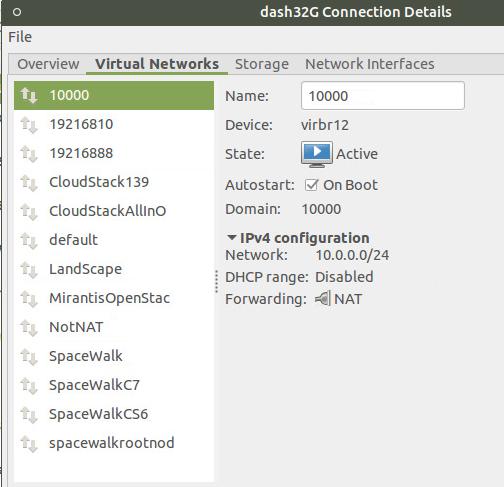
To be Continued.
Oct 23, 2015
TechnologyInstallation
Pull the docker image via:
$ sudo docker pull ceph/demo
Run Ceph
Run the container via:
# sudo docker run -d --net=host -e MON_IP=192.168.10.190 -e CEPH_NETWORK=192.168.10.0/24
ceph/demo
View the docker instance via:
# docker ps
CONTAINER ID        IMAGE               COMMAND             CREATED             STATUS              PORTS               NAMES
cbe567594adb        ceph/demo           "/entrypoint.sh"    About an hour ago   Up About an hour                        furious_hopper
# docker exec -it cbe567594adb
Ceph Operation
View the ceph processes:
root@monitor:/# ps -ef | grep "ceph"
root         1     0  0 13:16 ?        00:00:00 /usr/bin/python /usr/bin/ceph -w
root        32     1  0 13:16 ?        00:00:01 ceph-mon -i monitor --public-addr 192.168.10.190:6789
root       201     1  0 13:16 ?        00:00:06 ceph-osd -i 0 -k /var/lib/ceph/osd/ceph-0/keyring
root       412     1  0 13:16 ?        00:00:01 ceph-mds --cluster=ceph -i 0
root       470     1  0 13:16 ?        00:00:03 radosgw -c /etc/ceph/ceph.conf -n client.radosgw.gateway -k /var/lib/ceph/radosgw/monitor/keyring --rgw-socket-path= --rgw-frontends=civetweb port=80
root       473     1  0 13:16 ?        00:00:01 /usr/bin/python /usr/bin/ceph-rest-api -n client.admin
root      1703  1557  0 14:37 ?        00:00:00 grep --color=auto ceph
View Ceph Status:
root@monitor:/# ceph -s
    cluster c3470b36-8d03-4dbb-8af4-d4353ea54973
     health HEALTH_OK
     monmap e1: 1 mons at {monitor=192.168.10.190:6789/0}
            election epoch 2, quorum 0 monitor
     mdsmap e5: 1/1/1 up {0=0=up:active}
     osdmap e22: 1 osds: 1 up, 1 in
      pgmap v75: 144 pgs, 11 pools, 6796 bytes data, 70 objects
            3789 MB used, 287 GB / 291 GB avail
                 144 active+clean
Create a new user:
# radosgw-admin user create --uid="xxxx" --display-name="XXXX YYYY" --email=xxxyyy@gmail.com
Remember the output of the access_key and secret_key.
Install softwares:
# apt-get update -y
# apt-get install -y python
# apt-get install -y python-pip
# pip install boto
# pip install ipython
# pip install s3cmd
# apt-get install -y vim
Use the list_buckets.py file:
# cat list_buckets.py
import boto
import boto.s3.connection

access_key =  '5S5YPYC46EVYG9MF0RSR'
secret_key = 'hEcgOMoNOp6jmYnt3G6qqJiT7mV5A8zBR9g6o38Z'

conn = boto.connect_s3(
        aws_access_key_id = access_key,
        aws_secret_access_key = secret_key,
        host = 'localhost',
        is_secure=False,
        calling_format = boto.s3.connection.OrdinaryCallingFormat(),
        )
In ipython, use following commands for create a new bucket:
In [8]: conn.create_bucket("fuck")
Out[8]: <Bucket: fuck>

In [9]: conn.get_all_buckets()
Out[9]: [<Bucket: fuck>]
Download the s3cfg file from :
https://github.com/tobegit3hub/.s3cfg/blob/master/.s3cfg
Also configure its access_key and secret_key, save it in your root
directory, run following commands, you will see the buckets:
# s3cmd ls
2015-10-23 13:25  s3://fuck
Mount Ceph In Linux
In Ubuntu machine, install ceph:
$ sudo apt-get install ceph
Get the admin’s password(In Ceph Container):
# ceph-authtool --print-key /etc/ceph/ceph.client.admin.keyring
AQAmMypWs06BGxAAQ1rQyFqFJ25xaDye4c9kyQ==
Now mount it via:
$ sudo mount -t ceph 192.168.10.190:/ /mnt -o name=admin,secret=AQAmMypWs06BGxAAQ1rQyFqFJ25xaDye4c9kyQ==
$ sudo touch /mnt/abc
Via ceph -s we could see the pgmap v86 changes, which indicates the data
has been written into the ceph.
