Dec 7, 2015
TechnologyInstallation
Install the rundeck under CentOS 7:
# rpm -Uvh http://repo.rundeck.org/latest.rpm
# yum install rundeck
Configuration
Configure some properties:
# vim /etc/rundeck/framework.properties
framework.server.name = 192.168.0.79
framework.server.hostname = 192.168.0.79
framework.server.port = 4440
framework.server.url = http://192.168.0.79:4440
# vim /etc/rundeck/rundeck-config.properties
grails.serverURL=http://192.168.0.79:4440
Start the service:
# service rundeckd start
Starting rundeckd (via systemctl):                         [  OK  ]
You could check the status via # systemctl status rundeckd.
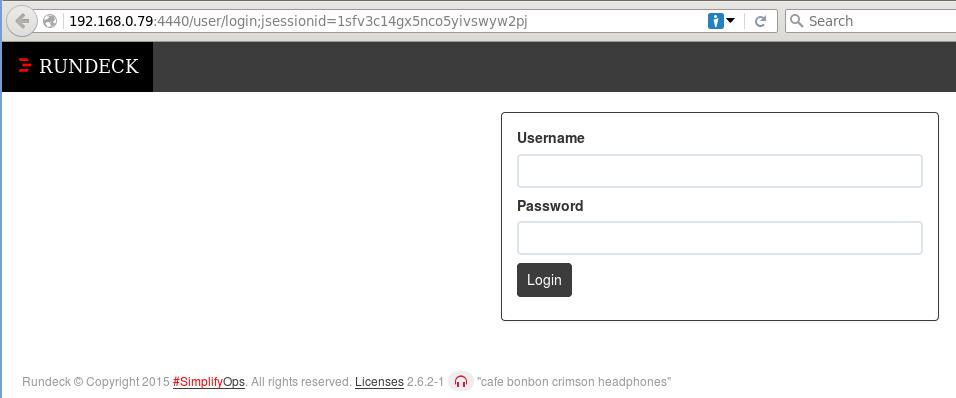
Now visit the server via http://192.168.0.79:4440, username/password are all admin, you should see following image:
Hint for creating project:

Run
Run command locally for creating an command based job.
In case of sudo requires a tty for executing the command:
# visudo
+ # Defaults    requiretty
+ rundeck ALL=(ALL)   NOPASSWD: ALL
Reference
http://www.tuicool.com/articles/zuI3ua
http://www.oschina.net/p/rundeck
http://gunner.me/archives/488
Dec 5, 2015
TechnologyNotice
Notice, this way is only for Bluez-5!!!!
Refers to:
https://wiki.gentoo.org/wiki/Bluetooth_Network_Aggregation_Point
https://wiki.gentoo.org/wiki/Bluetooth
http://blog.fraggod.net/2015/03/28/bluetooth-pan-network-setup-with-bluez-5x.html
Bluez-4 could be much more easier via pand. For example, in ubuntu you could
setup the bluetooth PAN via:
http://blog.sumostyle.net/2009/11/ubuntu-tethering-via-bluetooth-pan/
RF-KILL
Use rfkill for unblock the soft-blocked bluetooth adapter:
[root@xxxx dash]# rfkill list bluetooth
2: hp-bluetooth: Bluetooth
        Soft blocked: yes
        Hard blocked: no
5: hci1: Bluetooth
        Soft blocked: yes
        Hard blocked: no
[root@xxxx dash]# rfkill unblock bluetooth

# rfkill list bluetooth
2: hp-bluetooth: Bluetooth
        Soft blocked: no
        Hard blocked: no
5: hci1: Bluetooth
        Soft blocked: no
        Hard blocked: no
bluetoothctl
Use bluetoothctl for configurating the bluetooth adapter:
[root@xxxx ]# bluetoothctl
[NEW] Controller 40:2C:xx:xx:xx:xx xxxx #2 [default]
[bluetooth]# power on
Changing power on succeeded
[bluetooth]# discoverable on
Changing discoverable on succeeded
[bluetooth]# agent on
Agent registered
[bluetooth]# scan on
PAN
Refers to:
http://blog.fraggod.net/2015/03/28/bluetooth-pan-network-setup-with-bluez-5x.html
--- machine-1
% bluetoothctl
[NEW] Controller 00:02:72:XX:XX:XX malediction [default]
[bluetooth]# power on
Changing power on succeeded
[CHG] Controller 00:02:72:XX:XX:XX Powered: yes
[bluetooth]# discoverable on
Changing discoverable on succeeded
[CHG] Controller 00:02:72:XX:XX:XX Discoverable: yes
[bluetooth]# agent on
...

--- machine-2 (snipped)
% bluetoothctl
[NEW] Controller 00:02:72:YY:YY:YY rpbox [default]
[bluetooth]# power on
[bluetooth]# scan on
[bluetooth]# agent on
[bluetooth]# pair 00:02:72:XX:XX:XX
[bluetooth]# trust 00:02:72:XX:XX:XX
Then Download the script from:
https://github.com/mk-fg/fgtk/blob/master/bt-pan
This bt-pan will setup both the server and the client.
In Server:
$ bt-pan --debug server $br
While the $br could be setup via following command(Take Gentoo for example):
# vim /etc/conf.d/net

...
# Comment out this line, and add the following lines:
#config_eth0="dhcp"
config_eth0="null"
bridge_br1="eth0"
config_br1="dhcp"
# Next two lines, to make two values work (keep setfd before stp):
brctl_br1="setfd 1
stp on"
...
# ln -s net.lo /etc/init.d/net.br1
# rc-service net.eth0 stop && rc-service net.br1 start
# rc-update add net.br1 default
In the Client side, do following:
$ bt-pan client 00:02:72:XX:XX:XX
Now check the both client and server, you will find bnep0 interface has been
created, you could see it via ifconfig bnep0.
Assign the same IP network range address to the client side, as in the br1
side in server. After that you could ping each other via bluetooth!
Dec 4, 2015
TechnologyAIM
For sharing the internet connection from working PC to Surface Pro.
Setup And Configuration
SurfacePro
Install bluez/bluez-libs/bluez-utils:
$ sudo pacman -S bluez bluez-utils bluez-libs
Modprobe the bnep kernel module:
[root@surfacepro ~]# modprobe bnep
[root@surfacepro ~]# lsmod | grep bnep
bnep                   20480  0
bluetooth             450560  6 bnep,btbcm,btrtl,btusb,btintel
[root@surfacepro ~]# modprobe btusb
Start the bluetooth.service via:
$ sudo systemctl start bluetooth.service
bluetoothctl will give access for configurating bluetooth equipment, following steps
shows how to connect to a bluetooth keyboard:
[root@surfacepro ~]# bluetoothctl
[NEW] Controller xx:xx:xx:xx:xx:xx surfacepro [default]
[bluetooth]#
[bluetooth]# agent KeyboardOnly
Agent registered
[bluetooth]# default-agent
Default agent request successful
[bluetooth]# power on
[CHG] Controller xx:xx:xx:xx:xx:xx Class: 0x00011c
Changing power on succeeded
[CHG] Controller xx:XX:XX:XX:XX:XX Powered: yes
[bluetooth]# scan on
Discovery started
[bluetooth]# pair D0:13:1E:11:F5:45
Attempting to pair with D0:13:1E:11:F5:45
[bluetooth]# connect D0:13:1E:11:F5:45
Now try to connect to the keyboard, yes you could use keyboard for typing.
PAN
Network Aggregation Point - NAP
Dec 3, 2015
TechnologyPreparation
Get the kernel and patch file:
To be Written
Build
Prepare for compiliation:
$ make mrproper
Get the current running configuration:
$ zcat /proc/config.gz > .config
$ make menuconfig
$ make -j3
$ make modules_install
Install Kernel, you newly generated kernel will be named as
vmlinuz-4.1.13-surfacepro3(Though surfacepro, surfacepro3 will remains its name) :
$ sudo cp -v arch/x86/boot/bzImage /boot/vmlinuz-4.1.13-surfacepro3
Generate the initial RAM disk:
$ sudo mkinitcpio -k 4.1.13-surfacepro3 -c /etc/mkinitcpio.conf -g  \
/boot/initramfs-4.1.13-surfacepro3.img
Copy System.map, it contains a list of kernel symbols.
$ sudo cp System.map /boot/System.map-4.1.13-surfacepro3
$ sudo ln -sf /boot/System.map-4.1.13-surfacepro3 /boot/System.map
Install the grub’s configuration into grub.cfg:
$ sudo vim /etc/default/grub
Edit with the name specified
$ sudo grub-mkconfig -o /boot/grub/grub.cfg
But still this modification didn’t solve surfacepro’s wireless problem. finally I have
to fall back to using yaourt’s surfac pro kernel.
Nov 25, 2015
TechnologyBackground
I installed ArchLinux+Awesome On my SurfacePro, while the charger of Surface Pro is not
so tight to the pad. Thus I have to use a battery indicator in Awesome.
Software
Refers to:
http://www.everythingisvoid.com/uncategorized/simple-battery-status-indicator-awesome-window-manager
Install steps on ArchLinux:
$ sudo pacman -S luarocks5.1 gobject-introspection acpi
$ sudo luarocks-5.1 install battery_status
You could manually run show_battery_status or add it into your own rc.lua file:
$ vim ~/.config/awesome/rc.lua
----.....................
autorunApps =
{
--.........
"synergyc 192.168.0.119",
"sudo echo 1240>/sys/class/backlight/intel_backlight/brightness",
"fcitx",
"show_battery_status",
----.....................
Now restart the awesome you could see the battery indicator.
Add Charging Indicator
First download the source code from github:
$ git clone https://github.com/svarogg/battery_status
Debug with luarocks loader:
rocks-5.1   lua5.1 -lluarocks.loader
Lua 5.1.5  Copyright (C) 1994-2012 Lua.org, PUC-Rio
> require("rex_posix")
> rex = require("rex_posix")
> battery_rex = rex.new([[([^,]{1,3})%]])
> rex=require("rex_posix")
> battery_rex=rex.new([[([^,]{1,3})%]])
> acpi=io.popen('acpi 2>&1')
> acpi_res = acpi:read("*line")
> acpi:close()
> print (acpi_res)
Battery 0: Full, 100%
> percentage=battery_rex:match(acpi_res)
> print (percentage)
100
> print(type(percentage))
string
> print(type(tonumber(percentage)))
number
> adapter = io.popen('acpi -a 2>&1')
> adapter_res = adapter:read("*line")
> adapter:close()
> print(adapter_res)
Adapter 0: on-line
> charge_rex = rex.new([[(on|off)]])
> print(charge_rex:match(adapter_res))
on
We get the status of the charge, then update the corresponding icon to the systray.
The modified repository could be fetched from:
https://github.com/purplepalmdash/Awesome-Battery-Indicator
