May 18, 2016
TechnologyAPT Packages
The downloaded deb files should be under /var/cache/apt, use following command for copying to
another position:
$ find . | grep -i deb$ | xargs % cp % ~/Dest_Folder
$ scp -r ~/Dest_Folder Your_Cobbler_Machine
Repositories
Install dpkg-dev package, so we could generate the dpkg packages:
$ sudo apt-get install -y dpkg-dev
Create a new repository:
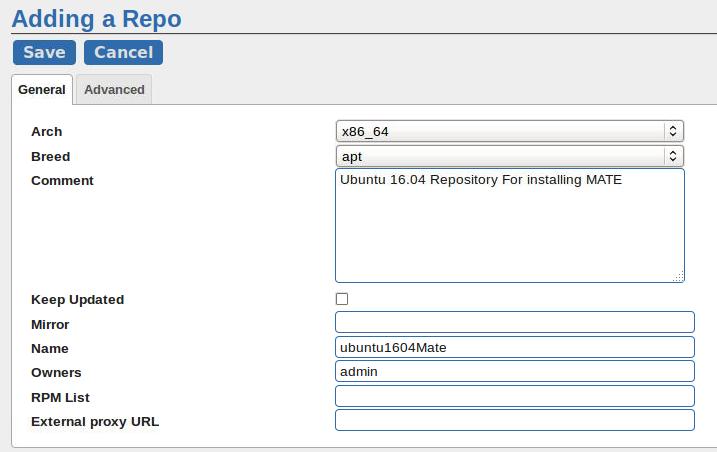
Edit the advanced options:
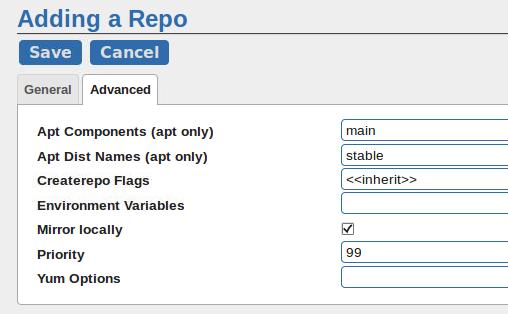
Report the repository info via:
root@cobbler-ubuntu:~# cobbler repo report --name=ubuntu1604Mate
Name                           : ubuntu1604Mate
Apt Components (apt only)      : ['main']
Apt Dist Names (apt only)      : ['stable']
Arch                           : x86_64
Breed                          : apt
Comment                        : Ubuntu 16.04 Repository For installing MATE
Createrepo Flags               : <<inherit>>
Environment Variables          : {}
Keep Updated                   : False
Mirror                         :
Mirror locally                 : True
Owners                         : ['admin']
Priority                       : 99
External proxy URL             :
RPM List                       : []
Yum Options                    : {}
Repository Structure Creation:
$ mkdir /srv/www/cobbler/repo_mirror/ubuntu1604Mate
$ cd /srv/www/cobbler/repo_mirror/ubuntu1604Mate
$ mkdir -p pool/main dists/stable/main/binary-i386 dists/stable/main/binary-amd64
$ cp ~/apt/debs/*.deb ./pool/main/
Enable the allow_unauthenticated options in kickstart file:
$ vim /var/lib/cobbler/kickstarts/sample.seed
 d-i debian-installer/allow_unauthenticated boolean true
Generate the gpg key:
# gpg --gen-key
  gpg (GnuPG) 2.0.14; Copyright (C) 2009 Free Software Foundation, Inc.
  This is free software: you are free to change and redistribute it.
  There is NO WARRANTY, to the extent permitted by law.

  gpg: directory `/root/.gnupg' created
  gpg: new configuration file `/root/.gnupg/gpg.conf' created
  gpg: WARNING: options in `/root/.gnupg/gpg.conf' are not yet active during this run
  gpg: keyring `/root/.gnupg/secring.gpg' created
  gpg: keyring `/root/.gnupg/pubring.gpg' created
 Please select what kind of key you want:
    (1) RSA and RSA (default)
    (2) DSA and Elgamal
    (3) DSA (sign only)
    (4) RSA (sign only)
 Your selection? 1
 RSA keys may be between 1024 and 4096 bits long.
 What keysize do you want? (2048)
 Requested keysize is 2048 bits
 Please specify how long the key should be valid.
          0 = key does not expire
       <n>  = key expires in n days
       <n>w = key expires in n weeks
       <n>m = key expires in n months
       <n>y = key expires in n years
 Key is valid for? (0)
 Key does not expire at all
 Is this correct? (y/N) y
For generating the random key, install the haveged in system:
$ sudo aptitude install haveged
List the keys via:
# gpg --list-keys
/home/vagrant/.gnupg/pubring.gpg
--------------------------------
pub   2048R/16D87321 2016-05-18
uid                  xxxxx <xxxxxx@gmail.com>
sub   2048R/8C4A318A 2016-05-18
Generate the pgp signature via:
# gpg --export -a 16D87321>~/junk.key
# gpg --no-default-keyring --keyring /srv/www/cobbler/repo_mirror/ubuntu1604Mate/public.pgp --import ~/junk.key
# rm -f ~/junk.key
# chmod a+r /srv/www/cobbler/repo_mirror/ubuntu1604Mate/public.pgp
Re-Generate the repository infos via:
$ cd /srv/www/cobbler/repo_mirror/ubuntu1604Mate/
$ vim reindex_apt.sh
$ chmod 777 reindex_apt.sh
$ ./reindex_apt.sh
The content of reindex_apt.sh is listed as following:
#!/bin/bash

GPG_NAME=16D87321
REPONAME=stable
VERSION=1.0

for bindir in `find dists/${REPONAME} -type d -name "binary*"`; do
    arch=`echo $bindir|cut -d"-" -f 2`
    echo "Processing ${bindir} with arch ${arch}"

    overrides_file=/tmp/overrides
    package_file=$bindir/Packages
    release_file=$bindir/Release

    # Create simple overrides file to stop warnings
    cat /dev/null > $overrides_file
    for pkg in `ls pool/main/ | grep -E "(all|${arch})\.deb"`; do
        pkg_name=`/usr/bin/dpkg-deb -f pool/main/${pkg} Package`
        echo "${pkg_name} Priority extra" >> $overrides_file
    done

    # Index of packages is written to Packages which is also zipped
    dpkg-scanpackages -a ${arch} pool/main $overrides_file > $package_file
    # The line above is also commonly written as:
    # dpkg-scanpackages -a ${arch} pool/main /dev/null > $package_file
    gzip -9c $package_file > ${package_file}.gz
    bzip2 -c $package_file > ${package_file}.bz2

    # Cleanup
    rm $overrides_file
done

# Release info goes into Release & Release.gpg which includes an md5 & sha1 hash of Packages.*
# Generate & sign release file
cd dists/${REPONAME}
cat > Release <<ENDRELEASE
Suite: ${REPONAME}
Version: ${VERSION}
Component: main
Origin: somewhere
Label: ubuntu1604Mate
Architecture: i386 amd64
Date: `date`
ENDRELEASE

# Generate hashes
echo "MD5Sum:" >> Release
for hashme in `find main -type f`; do
    md5=`openssl dgst -md5 ${hashme}|cut -d" " -f 2`
    size=`stat -c %s ${hashme}`
    echo " ${md5} ${size} ${hashme}" >> Release
done
echo "SHA1:" >> Release
for hashme in `find main -type f`; do
    sha1=`openssl dgst -sha1 ${hashme}|cut -d" " -f 2`
    size=`stat -c %s ${hashme}`
    echo " ${sha1} ${size} ${hashme}" >> Release
done

# Sign!
gpg --yes -u $GPG_NAME --sign -bao Release.gpg Release
cd -
Now continue to modify the kickstart file for using the generated gpgs:
# pwd
/var/lib/cobbler/snippets
# cp preseed_apt_repo_config preseed_apt_repo_config_pgpkey
The preseed_apt_repo_config_pgpkey should be listed as following:
# Additional repositories, local[0-9] available
#set $cur=1
#set $repo_data = $getVar("repo_data",[])
#for $repo in $repo_data
 #for $dist in $repo.apt_dists
 #set $comps = " ".join($repo.apt_components)
d-i apt-setup/local${cur}/repository string \
 #if $repo.mirror_locally
      http://$http_server/cblr/repo_mirror/${repo.name} $dist $comps
 #else
      ${repo.mirror} $dist $comps
 #end if
 #if $repo.comment != ""
d-i apt-setup/local${cur}/comment string ${repo.comment}
 #end if
 #if $repo.breed == "src"
# Enable deb-src lines
d-i apt-setup/local${cur}/source boolean false
 #end if
+++ # Add repo pgp pub key
+++ d-i apt-setup/local${cur}/key string \
+++       http://$http_server/cblr/repo_mirror/${repo.name}/public.pgp
 #set $cur=$cur+1
 #end for
#end for
Using the new preseed file, and changint the preseed_apt_repo_config_pgpkey:
# pwd
/var/lib/cobbler/kickstarts
# cp sample.seed ubuntu1604.seed
# vim ubuntu1604.seed
-  $SNIPPET('preseed_apt_repo_config')
+  $SNIPPET('preseed_apt_repo_config_pgpkey')
Changing the seed in the cobbler_web:
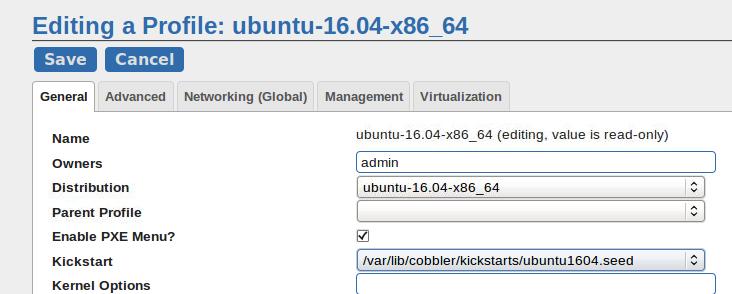
Use cobbler sync for syncing the configuration.
Use the Repository
Add the ubuntu1604Mate into the Repos:
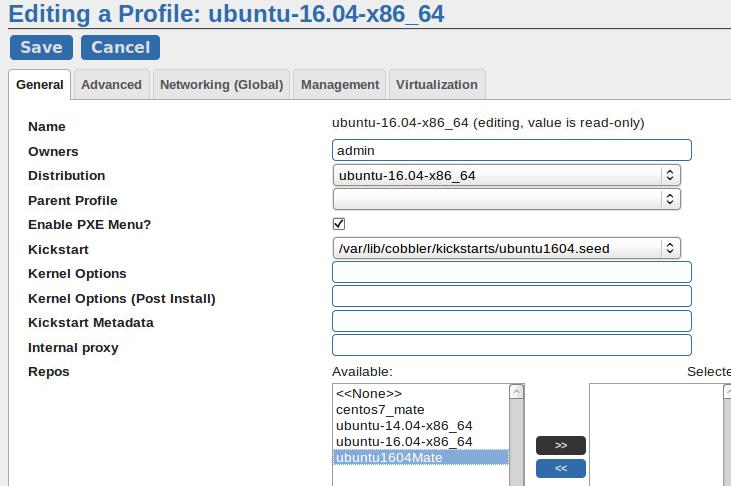
After added, the configuration should be:
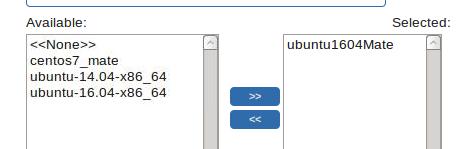
Now cobbler sync for syncing the configuration.
Bug: you should move the preseed_apt_repo_config and then cobbler sync then your deployment will be OK:
$ mv /var/lib/cobbler/snippets/preseed_apt_repo_config /root/
$ cobbler sync
Added Mate Installation
Configure the preseed late:
# cp /var/lib/cobbler/scripts/preseed_late_default /var/lib/cobbler/scripts/preseed_late_default_mate
# vim /var/lib/cobbler/scripts/preseed_late_default_mate
# vim preseed_late_default_mate
$SNIPPET('post_install_network_config_deb')
$SNIPPET('late_apt_repo_config')
$SNIPPET('post_run_deb')
$SNIPPET('download_config_files')
+ $SNIPPET('ubuntumate')
$SNIPPET('kickstart_done')
Now add the snippet of ubuntumate:
# cat ../snippets/ubuntumate
echo "debconf debconf/frontend select noninteractive" | sudo debconf-set-selections
apt-get --allow-unauthenticated update -y
apt-get --allow-unauthenticated upgrade -y
apt-get --allow-unauthenticated install -y build-essential
### apt-get --allow-unauthenticated install -y ubuntu-mate-desktop
apt-get --allow-unauthenticated install -y vim
### apt-get --allow-unauthenticated install -y chromium-browser
### apt-get --allow-unauthenticated install -y meld vim-gtk
### apt-get --allow-unauthenticated install -y evince
### sudo apt-get --allow-unauthenticated install -y language-pack-zh-hans language-pack-zh-hans-base language-pack-gnome-zh-hans language-pack-gnome-zh-hans-base
### sudo apt-get --allow-unauthenticated install -y `check-language-support -l zh`
### sudo localectl set-locale LANG=zh_CN.UTF-8
### # TW/HK language support
### sudo apt-get --allow-unauthenticated install -y language-pack-zh-hant language-pack-zh-hant-base language-pack-gnome-zh-hant language-pack-gnome-zh-hant-base
### sudo apt-get --allow-unauthenticated install -y `check-language-support -l zh`
### apt-get --allow-unauthenticated install -y fcitx
### apt-get --allow-unauthenticated install -y fcitx-table-wubi fcitx-table-wubi-large
### apt-get --allow-unauthenticated install -y fcitx-googlepinyin
### apt-get --allow-unauthenticated install -y gimp
### apt-get --allow-unauthenticated install -y ibus-pinyin
### apt-get --allow-unauthenticated install -y thunderbird-locale-en-us mythes-en-au hunspell-en-gb thunderbird-locale-en-gb fonts-arphic-ukai wbritish fcitx-sunpinyin openoffice.org-hyphenation language-pack-gnome-en hunspell-en-za fcitx-chewing fcitx-table-cangjie gimp-help-en language-pack-en mythes-en-us thunderbird-locale-en fcitx-module-cloudpinyin libreoffice-help-en-us firefox-locale-en libreoffice-help-en-gb fonts-arphic-uming hyphen-en-gb libreoffice-l10n-en-za fcitx-ui-qimpanel hunspell-en-au libreoffice-l10n-en-gb hyphen-en-us hunspell-en-ca
### apt-get --allow-unauthenticated install -y zsh
### apt-get --allow-unauthenticated install -y fonts-wqy-zenhei fonts-wqy-microhei ttf-wqy-microhei  ttf-wqy-zenhei  xfonts-wqy
### apt-get --allow-unauthenticated install -y eclipse
### apt-get --allow-unauthenticated install -y gpicview
### apt-get --allow-unauthenticated install -y scrot
### apt-get --allow-unauthenticated install -y byobu
### apt-get --allow-unauthenticated install -y subversion git
### apt-get --allow-unauthenticated install -y kdiff3
### apt-get --allow-unauthenticated install -y docker
Use cobbler sync, and now you could deploy mate desktop via cobbler.
May 12, 2016
TechnologyInstallation
Based on Ubuntu16.04, install maas via:
$ sudo apt-get install -y maas
After installation, create the default username/password via following command:
$ sudo maas-region createadmin --username=root --email=xxyy@xxyy.com
Password:
Again:
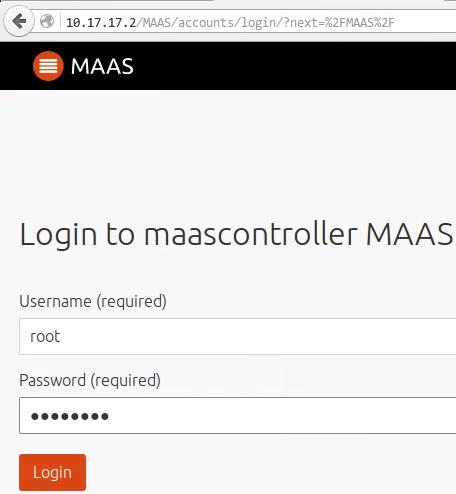
Now you could login to the http://YourIP/MAAS via:
Using API to talk
In maas cli, using following steps for generate the API key and use:
# sudo maas-region apikey --username=root
AYnuZY3gWTnpxJb7Kp:AtDG3yUmaDu8tXGzTc:tumR29xsRGL6A7T6M2G7LTETPP5kkDwC
# maas login mymaas http://10.17.17.2/MAAS/api/2.0
AYnuZY3gWTnpxJb7Kp:AtDG3yUmaDu8tXGzTc:tumR29xsRGL6A7T6M2G7LTETPP5kkDwC

You are now logged in to the MAAS server at
http://10.17.17.2/MAAS/api/2.0/ with the profile name 'mymaas'.

For help with the available commands, try:

  maas mymaas --help
Later we will use mymaas for talk to MAAS Controller.
Add Boot Source
Click Images, you won’t see anything because the images are not downloaded. you could
download it manually via following command:
$ sudo apt-get install simplestreams ubuntu-cloudimage-keyring apache2
$ sudo sstream-mirror --keyring=/usr/share/keyrings/ubuntu-cloudimage-keyring.gpg \
https://images.maas.io/ephemeral-v2/daily/ /var/www/html/maas/images/ephemeral-v2/daily \
'arch=amd64' 'subarch~(generic|hwe-t)' 'release~(trusty|precise|xenial)' --max=1
After downloading, the image content will be available under /var/www/html/.
Or, if you downloaded the html files before, do following steps for using your
pre-downloaded packages:
$ tar xJvf html.tar.bz2 -C /var/www/html/
$ sudo maas mymaas boot-sources create url=http://10.17.17.2/mirror/images/ephemeral-v2/releases/ keyring_filename=/usr/share/keyrings/ubuntu-cloudimage-keyring.gpg
Now there are two boot-sources in maas, delete the default one(Because we are in china,
and its goddamned GFW!)
dash@maascontroller:~$ sudo maas mymaas boot-source delete 1
Success.
Machine-readable output follows:

dash@maascontroller:~$ sudo maas mymaas boot-sources read
Success.
Machine-readable output follows:
[
    {
        "keyring_data": "<memory at 0x7f4e9478b288>",
        "resource_uri": "/MAAS/api/2.0/boot-sources/2/",
        "id": 2,
        "url": "http://10.17.17.2/mirror/images/ephemeral-v2/releases/",
        "keyring_filename": "/usr/share/keyrings/ubuntu-cloudimage-keyring.gpg"
    }
$
Import boot-sources via:
$ sudo maas mymaas boot-resources import
It will takes a little bit time for importing the boot images.
For adding nodes:
https://maas.ubuntu.com/docs2.0/nodes.html
May 11, 2016
TechnologyPreparation
By default the lxd is installed in ubuntu1604.
Image
The image file are downloaded before we actually install it, install the image via:
$ lxc image import ubuntu-16.04-server-cloudimg-amd64-lxd.tar.xz ubuntu-16.04-server-cloudimg-amd64-root.tar.xz --alias ubuntu1604
$ lxc image list
+--------------+--------------+--------+--------------------------------------+--------+----------+------------------------------+
|    ALIAS     | FINGERPRINT  | PUBLIC |             DESCRIPTION              |  ARCH  |   SIZE   |         UPLOAD DATE          |
+--------------+--------------+--------+--------------------------------------+--------+----------+------------------------------+
| ubuntu1604   | f4c4c60a6b75 | no     | Ubuntu 16.04 LTS server (20160420.3) | x86_64 | 137.54MB | May 10, 2016 at 2:18pm (UTC)
Start Container
Start the container via:
$ lxc launch ubuntu1604 first1404
$ lxc list
+------------+---------+------+------+------------+-----------+
|    NAME    |  STATE  | IPV4 | IPV6 |    TYPE    | SNAPSHOTS |
+------------+---------+------+------+------------+-----------+
| first1404  | RUNNING |      |      | PERSISTENT | 0         |
+------------+---------+------+------+------------+-----------+
Attach to the running container via:
$ lxc exec first1404 /bin/bash
In this container you could do anything, for your customization of the container.
More Images
After your modification is done, shutdown the running container, and submit your
modification to a new container:
$ lxc publish second1604 --alias my-new-image
$ lxc image list
+--------------+--------------+--------+--------------------------------------+--------+----------+------------------------------+
|    ALIAS     | FINGERPRINT  | PUBLIC |             DESCRIPTION              |  ARCH  |   SIZE   |         UPLOAD DATE          |
+--------------+--------------+--------+--------------------------------------+--------+----------+------------------------------+
| my-new-image | 67de38342bfa | no     |                                      | x86_64 | 192.29MB | May 11, 2016 at 7:07am (UTC) |
+--------------+--------------+--------+--------------------------------------+--------+----------+------------------------------+
| ubuntu1604   | f4c4c60a6b75 | no     | Ubuntu 16.04 LTS server (20160420.3) | x86_64 | 137.54MB | May 10, 2016 at 2:18pm (UTC) |
+--------------+--------------+--------+--------------------------------------+--------+----------+------------------------------+
Container Networking
The default networking is a seperated network, but we could set the lxd using the hosted
network, via following steps:
$ cat /etc/network/interfaces

auto ens3
iface ens3 inet manual

auto containerbr
iface containerbr inet static
address 192.168.10.193
netmask 255.255.0.0
gateway 192.168.0.176
dns-nameservers 180.76.76.76
bridge_ports ens3
Reboot the machine, you have the running bridge containerbr, now you could set your bridge to this
newly created bridge:
$ lxc profile device set default eth0 parent containerbr
Via this you cuold set the same subnet networking address just as in containerbr.
May 10, 2016
TechnologyWorking Tips
Just for importing the images and let it run in lxc
dash@ubuntu:~/may10$ ls
ubuntu-14.04-server-cloudimg-amd64-lxd.tar.xz   ubuntu-15.04-snappy-amd64-generic.img.xz       ubuntu-16.04-server-cloudimg-amd64-root.tar.xz
ubuntu-14.04-server-cloudimg-amd64-root.tar.xz  ubuntu-16.04-server-cloudimg-amd64-lxd.tar.xz
dash@ubuntu:~/may10$ lxc image import ubuntu-14.04-server-cloudimg-amd64-lxd.tar.xz ubuntu-14.04-server-cloudimg-amd64-root.tar.xz --alias ubuntu:14.04
Transferring image: 100%
Image imported with fingerprint: b69c9370446a28c02ad5b0d41f07e028a1756a74bee62b7d59467201a6488fc2
dash@ubuntu:~/may10$ lxc image list
+--------------+--------------+--------+------------------------------------+--------+----------+------------------------------+
|    ALIAS     | FINGERPRINT  | PUBLIC |            DESCRIPTION             |  ARCH  |   SIZE   |         UPLOAD DATE          |
+--------------+--------------+--------+------------------------------------+--------+----------+------------------------------+
| ubuntu:14.04 | b69c9370446a | no     | Ubuntu 14.04 LTS server (20160406) | x86_64 | 118.89MB | May 10, 2016 at 2:16pm (UTC) |
+--------------+--------------+--------+------------------------------------+--------+----------+------------------------------+
dash@ubuntu:~/may10$ lxc launch ubuntu:14.04 first1404
Creating first1404
error: Get https://cloud-images.ubuntu.com/releases/streams/v1/index.json: lookup cloud-images.ubuntu.com on 180.76.76.76:53: read udp 10.47.58.215:44871->180.76.76.76:53: i/o timeout
dash@ubuntu:~/may10$ lxc launch b69c9370446a first1404
Creating first1404
Starting first1404
dash@ubuntu:~/may10$ lxc image import ubuntu-16.04-server-cloudimg-amd64-lxd.tar.xz ubuntu-16.04-server-cloudimg-amd64-root.tar.xz --alias ubuntu1604
Transferring image: 100%
Transferring image: 100%
Image imported with fingerprint: f4c4c60a6b752a381288ae72a1689a9da00f8e03b732c8d1b8a8fcd1a8890800
dash@ubuntu:~/may10$ lxc image list
+--------------+--------------+--------+--------------------------------------+--------+----------+------------------------------+
|    ALIAS     | FINGERPRINT  | PUBLIC |             DESCRIPTION              |  ARCH  |   SIZE   |         UPLOAD DATE          |
+--------------+--------------+--------+--------------------------------------+--------+----------+------------------------------+
| ubuntu1604   | f4c4c60a6b75 | no     | Ubuntu 16.04 LTS server (20160420.3) | x86_64 | 137.54MB | May 10, 2016 at 2:18pm (UTC) |
+--------------+--------------+--------+--------------------------------------+--------+----------+------------------------------+
| ubuntu:14.04 | b69c9370446a | no     | Ubuntu 14.04 LTS server (20160406)   | x86_64 | 118.89MB | May 10, 2016 at 2:16pm (UTC) |
+--------------+--------------+--------+--------------------------------------+--------+----------+------------------------------+
dash@ubuntu:~/may10$ lxc launch ubuntu1604 first1404
Creating first1404
error: The container already exists
dash@ubuntu:~/may10$ lxc launch ubuntu1604 first1604
Creating first1604
Starting first1604
dash@ubuntu:~/may10$ lxc exec first1604 /bin/bash
root@first1604:~# ls
root@first1604:~# ifconfig
eth0      Link encap:Ethernet  HWaddr 00:16:3e:b0:f2:c3
          inet addr:10.226.147.79  Bcast:10.226.147.255  Mask:255.255.255.0
          inet6 addr: fe80::216:3eff:feb0:f2c3/64 Scope:Link
dash@ubuntu:~/may10$ ls
ubuntu-14.04-server-cloudimg-amd64-lxd.tar.xz   ubuntu-15.04-snappy-amd64-generic.img.xz       ubuntu-16.04-server-cloudimg-amd64-root.tar.xz
ubuntu-14.04-server-cloudimg-amd64-root.tar.xz  ubuntu-16.04-server-cloudimg-amd64-lxd.tar.xz
dash@ubuntu:~/may10$ lxc image import ubuntu-14.04-server-cloudimg-amd64-lxd.tar.xz ubuntu-14.04-server-cloudimg-amd64-root.tar.xz --alias ubuntu:14.04
Transferring image: 100%
Image imported with fingerprint: b69c9370446a28c02ad5b0d41f07e028a1756a74bee62b7d59467201a6488fc2
dash@ubuntu:~/may10$ lxc image list
+--------------+--------------+--------+------------------------------------+--------+----------+------------------------------+
|    ALIAS     | FINGERPRINT  | PUBLIC |            DESCRIPTION             |  ARCH  |   SIZE   |         UPLOAD DATE          |
+--------------+--------------+--------+------------------------------------+--------+----------+------------------------------+
| ubuntu:14.04 | b69c9370446a | no     | Ubuntu 14.04 LTS server (20160406) | x86_64 | 118.89MB | May 10, 2016 at 2:16pm (UTC) |
+--------------+--------------+--------+------------------------------------+--------+----------+------------------------------+
dash@ubuntu:~/may10$ lxc launch ubuntu:14.04 first1404
Creating first1404
error: Get https://cloud-images.ubuntu.com/releases/streams/v1/index.json: lookup cloud-images.ubuntu.com on 180.76.76.76:53: read udp 10.47.58.215:44871->180.76.76.76:53: i/o timeout
dash@ubuntu:~/may10$ lxc launch b69c9370446a first1404
Creating first1404
Starting first1404
dash@ubuntu:~/may10$ lxc image import ubuntu-16.04-server-cloudimg-amd64-lxd.tar.xz ubuntu-16.04-server-cloudimg-amd64-root.tar.xz --alias ubuntu1604
Transferring image: 100%
Transferring image: 100%
Image imported with fingerprint: f4c4c60a6b752a381288ae72a1689a9da00f8e03b732c8d1b8a8fcd1a8890800
dash@ubuntu:~/may10$ lxc image list
+--------------+--------------+--------+--------------------------------------+--------+----------+------------------------------+
|    ALIAS     | FINGERPRINT  | PUBLIC |             DESCRIPTION              |  ARCH  |   SIZE   |         UPLOAD DATE          |
+--------------+--------------+--------+--------------------------------------+--------+----------+------------------------------+
| ubuntu1604   | f4c4c60a6b75 | no     | Ubuntu 16.04 LTS server (20160420.3) | x86_64 | 137.54MB | May 10, 2016 at 2:18pm (UTC) |
+--------------+--------------+--------+--------------------------------------+--------+----------+------------------------------+
| ubuntu:14.04 | b69c9370446a | no     | Ubuntu 14.04 LTS server (20160406)   | x86_64 | 118.89MB | May 10, 2016 at 2:16pm (UTC) |
+--------------+--------------+--------+--------------------------------------+--------+----------+------------------------------+
dash@ubuntu:~/may10$ lxc launch ubuntu1604 first1404
Creating first1404
error: The container already exists
dash@ubuntu:~/may10$ lxc launch ubuntu1604 first1604
Creating first1604
Starting first1604
dash@ubuntu:~/may10$ lxc exec first1604 /bin/bash
root@first1604:~# ls
root@first1604:~# ifconfig
eth0      Link encap:Ethernet  HWaddr 00:16:3e:b0:f2:c3
          inet addr:10.226.147.79  Bcast:10.226.147.255  Mask:255.255.255.0
          inet6 addr: fe80::216:3eff:feb0:f2c3/64 Scope:Link
dash@ubuntu:~/may10$ ls
ubuntu-14.04-server-cloudimg-amd64-lxd.tar.xz   ubuntu-15.04-snappy-amd64-generic.img.xz       ubuntu-16.04-server-cloudimg-amd64-root.tar.xz
ubuntu-14.04-server-cloudimg-amd64-root.tar.xz  ubuntu-16.04-server-cloudimg-amd64-lxd.tar.xz
dash@ubuntu:~/may10$ lxc image import ubuntu-14.04-server-cloudimg-amd64-lxd.tar.xz ubuntu-14.04-server-cloudimg-amd64-root.tar.xz --alias ubuntu:14.04
Transferring image: 100%
Image imported with fingerprint: b69c9370446a28c02ad5b0d41f07e028a1756a74bee62b7d59467201a6488fc2
dash@ubuntu:~/may10$ lxc image list
+--------------+--------------+--------+------------------------------------+--------+----------+------------------------------+
|    ALIAS     | FINGERPRINT  | PUBLIC |            DESCRIPTION             |  ARCH  |   SIZE   |         UPLOAD DATE          |
+--------------+--------------+--------+------------------------------------+--------+----------+------------------------------+
| ubuntu:14.04 | b69c9370446a | no     | Ubuntu 14.04 LTS server (20160406) | x86_64 | 118.89MB | May 10, 2016 at 2:16pm (UTC) |
+--------------+--------------+--------+------------------------------------+--------+----------+------------------------------+
dash@ubuntu:~/may10$ lxc launch ubuntu:14.04 first1404
Creating first1404
error: Get https://cloud-images.ubuntu.com/releases/streams/v1/index.json: lookup cloud-images.ubuntu.com on 180.76.76.76:53: read udp 10.47.58.215:44871->180.76.76.76:53: i/o timeout
dash@ubuntu:~/may10$ lxc launch b69c9370446a first1404
Creating first1404
Starting first1404
dash@ubuntu:~/may10$ lxc image import ubuntu-16.04-server-cloudimg-amd64-lxd.tar.xz ubuntu-16.04-server-cloudimg-amd64-root.tar.xz --alias ubuntu1604
Transferring image: 100%
Transferring image: 100%
Image imported with fingerprint: f4c4c60a6b752a381288ae72a1689a9da00f8e03b732c8d1b8a8fcd1a8890800
dash@ubuntu:~/may10$ lxc image list
+--------------+--------------+--------+--------------------------------------+--------+----------+------------------------------+
|    ALIAS     | FINGERPRINT  | PUBLIC |             DESCRIPTION              |  ARCH  |   SIZE   |         UPLOAD DATE          |
+--------------+--------------+--------+--------------------------------------+--------+----------+------------------------------+
| ubuntu1604   | f4c4c60a6b75 | no     | Ubuntu 16.04 LTS server (20160420.3) | x86_64 | 137.54MB | May 10, 2016 at 2:18pm (UTC) |
+--------------+--------------+--------+--------------------------------------+--------+----------+------------------------------+
| ubuntu:14.04 | b69c9370446a | no     | Ubuntu 14.04 LTS server (20160406)   | x86_64 | 118.89MB | May 10, 2016 at 2:16pm (UTC) |
+--------------+--------------+--------+--------------------------------------+--------+----------+------------------------------+
dash@ubuntu:~/may10$ lxc launch ubuntu1604 first1404
Creating first1404
error: The container already exists
dash@ubuntu:~/may10$ lxc launch ubuntu1604 first1604
Creating first1604
Starting first1604
dash@ubuntu:~/may10$ lxc exec first1604 /bin/bash
root@first1604:~# ls
root@first1604:~# ifconfig
eth0      Link encap:Ethernet  HWaddr 00:16:3e:b0:f2:c3
          inet addr:10.226.147.79  Bcast:10.226.147.255  Mask:255.255.255.0
          inet6 addr: fe80::216:3eff:feb0:f2c3/64 Scope:Link
....
May 9, 2016
TechnologyPackage Prepare
We have the default vagrant box generated by bento, listed it via:
➜  mesos vagrant box list | grep -i centos | grep -i virtualbox
centos72                                     (virtualbox, 0)
Now we want to generate a new box from it, and added our own configuration:
$ vagrant init centos72
$ vagrant up
$ vagrant ssh
Edit for keeping the cache:
$ cat /etc/yum.conf  | more
[main]
cachedir=/home/vagrant/rpms/$basearch/$releasever
#keepcache=0
keepcache=1
Now poweroff the machine and export it to the new box:
$ vagrant package --output centoslocalrpm.box
$ vagrant box add centoslocalrpm centoslocalrpm.box
Using the new box, the rpm packages could be saved into the folder
/home/vagrant/rpms.
Deploy Using Ansible
Refers to
https://open.mesosphere.com/advanced-course/recreating-the-cluster-using-ansible/
